AWS Notes: S3
What is S3?
S3 is AWS’s object storage service. Basically, you store files here. Accessible via web, unlimited capacity, and crazy durability - 99.999999999% (that’s 11 nines).
Buckets: Think of a bucket like a folder, but the name must be globally unique across all AWS accounts. You put files (objects) inside it. Each bucket is created in a specific region.
Naming rules: lowercase letters, numbers, hyphens (-) and dots (.). Examples: my-app-backups-2024, company-logs.eu-west-1
Objects: An object is just the file you’re storing - image, video, document, whatever. Each object has the actual data (file content) and metadata (size, type, creation date, etc.).
Max size is 5 TB per object. For files larger than 5 GB, you need to use multipart upload - it splits the file into parts, each part max 5 GB.
Keys: The key is the full path/name of the object in the bucket. Like a file path: folder1/folder2/file.jpg. The key uniquely identifies the object within a bucket.
Example: bucket is my-bucket, key is images/2024/photo.jpg → full path is my-bucket/images/2024/photo.jpg
Use Cases
Common use cases: static website hosting, backup & archive, data lake/analytics, media storage (videos, images), CI/CD artifacts, application data storage. Pretty versatile.
Hands-On: Create a Bucket
Go to S3 Console → Click “Create bucket”
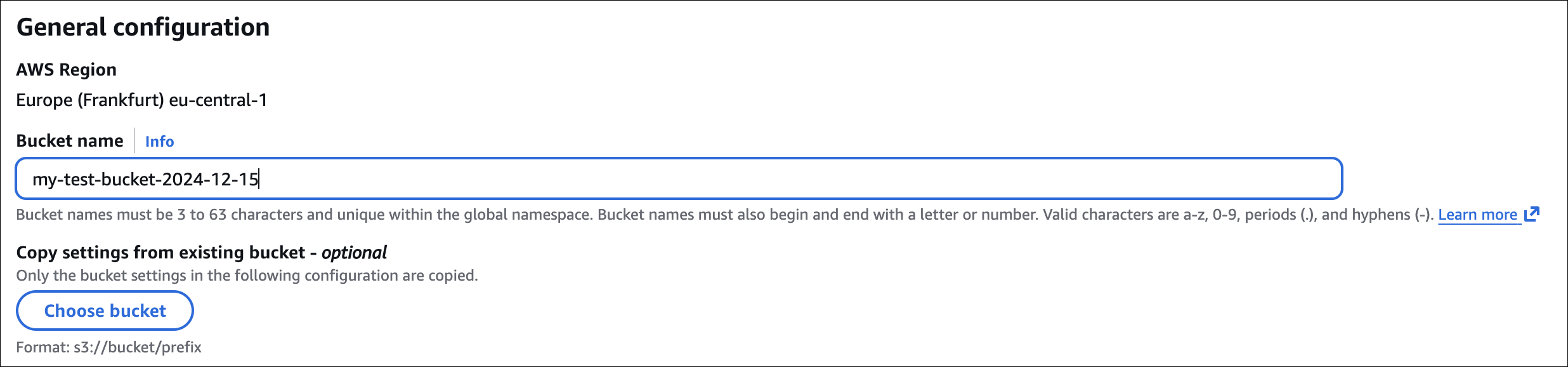
General configuration:
- Bucket name: Enter a unique name (e.g.,
my-test-bucket-2024-12-15) - AWS Region: Choose a region (e.g.,
eu-central-1)
Object Ownership:
- ACLs disabled (recommended) - simpler, use bucket policies
- ACLs enabled - legacy option, use ACLs for fine-grained control

Block Public Access:
- Keep enabled (default) - blocks public access
- Uncheck if you need public access (e.g., static website)

Bucket Versioning:
- Disable (default) - one version per object
- Enable - keep multiple versions (useful for backup/recovery)
Default encryption:
- Server-side encryption - AWS manages keys (SSE-S3) or use KMS (SSE-KMS)
- I usually enable SSE-S3, it’s free and simple

Advanced settings:
- Object Lock - prevent deletion (compliance/legal)
- Tags - optional, for cost tracking
Click “Create bucket” and you’re done. Bucket URL format: https://bucket-name.s3.region.amazonaws.com
Hands-On: Allow Public Read Access
Uploaded an image but getting “Access Denied” when trying to access it from the internet? Need to allow public read access.
Steps:
- Disable Block Public Access:
- Go to your bucket → Permissions tab
- Click Edit on “Block public access”
- Uncheck all 4 boxes (or at least “Block public access to buckets and objects granted through new public bucket or access point policies”)
- Click Save changes → Confirm
- Add Bucket Policy:
- Still in Permissions tab → Scroll to Bucket policy
- Click Edit → Policy editor
- Click Policy generator (or write manually)
- Policy JSON:
1
2
3
4
5
6
7
8
9
10
11
12
{
  "Version": "2012-10-17",
  "Statement": [
    {
      "Sid": "PublicReadGetObject",
      "Effect": "Allow",
      "Principal": "*",
      "Action": "s3:GetObject",
      "Resource": "arn:aws:s3:::your-bucket-name/*"
    }
  ]
}
Replace
your-bucket-namewith your actual bucket name. This allows anyone to read (GET) objects, but not list or delete. - Save policy
Now your objects are publicly accessible. Access URL: https://your-bucket-name.s3.region.amazonaws.com/object-key
Example: https://my-bucket.s3.eu-central-1.amazonaws.com/images/photo.jpg
If you only want specific objects public, use object ACLs or more specific bucket policy conditions (like path prefixes).
Static Website Hosting
S3 can host static websites (HTML, CSS, JS, images). No servers needed, pretty cool.
Steps:
Upload your files (
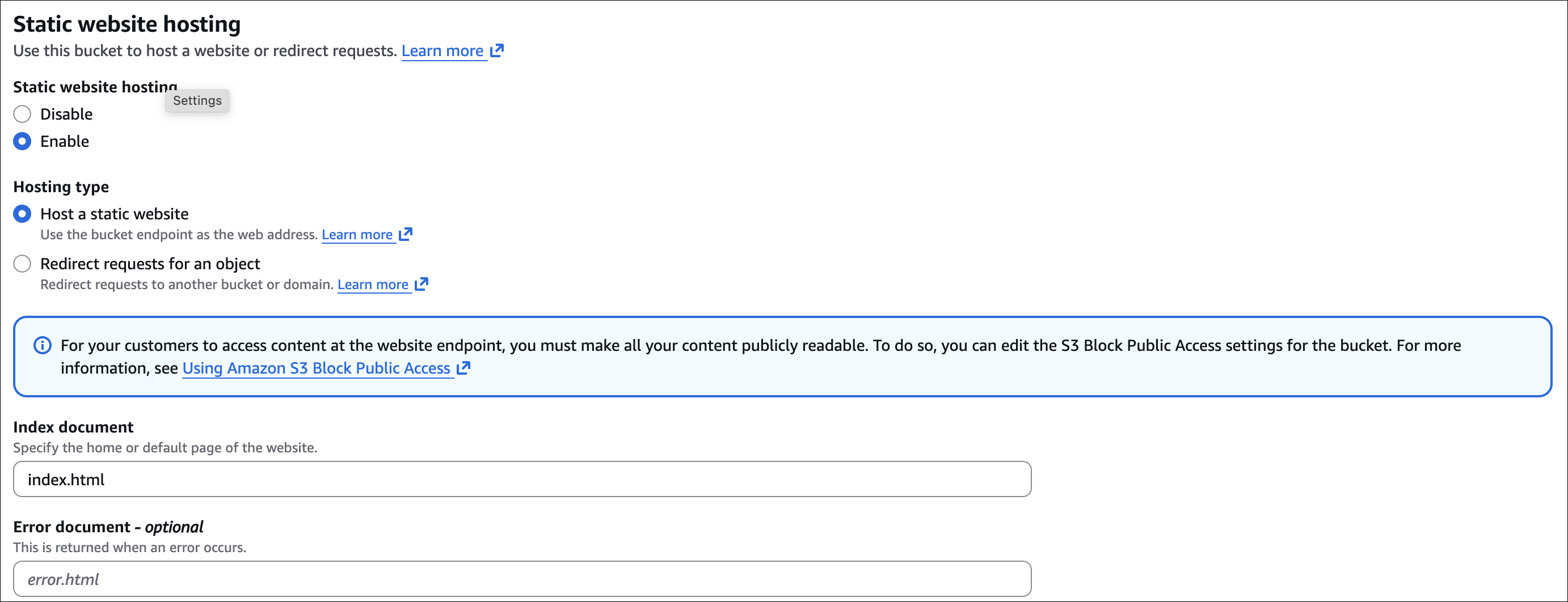
index.html, CSS, JS, images) to the bucket- Enable static website hosting:
- Bucket → Properties → Static website hosting → Edit → Enable
- Index document:
index.html - Error document:
error.html(optional) - Save
- Make bucket public (see steps above for Block Public Access + bucket policy)
Website URL: Format: http://bucket-name.s3-website-region.amazonaws.com
Example: http://my-website.s3-website.eu-central-1.amazonaws.com
Uses HTTP (for HTTPS, use CloudFront). For custom domain + HTTPS: CloudFront + Route 53
Security
S3 security is about access control and encryption. Use IAM policies for user/role access, bucket policies for bucket-level rules and cross-account access. Block Public Access is enabled by default - keep it on unless you need public buckets.
For access: IAM users get access keys, EC2 instances use IAM roles (more secure), and cross-account access works via bucket policies or assume role.
Other features: MFA Delete (requires versioning), Presigned URLs (temporary access), CORS (cross-origin), VPC Endpoints (private access), and Object Lock (compliance).
Versioning
Versioning keeps multiple versions of the same object. Upload a file with the same key? S3 creates a new version instead of overwriting. Pretty useful when you accidentally delete or overwrite something.
Enable versioning on bucket (Properties → Bucket Versioning → Enable). Each upload gets a unique version ID.
One thing to remember: existing objects before enabling versioning have version ID = null (they become the first version). New uploads after enabling get proper version IDs.
Default version is always the latest one. Old versions stick around (you pay for storage though). When you delete, it creates a delete marker - object looks deleted but versions are still there.
Use cases:
- Accidentally overwrote a file? Restore previous version
- Need to rollback changes? Access old version
- Compliance/audit requirements (keep history)
- Protection against accidental deletion
Things to remember:
- Once enabled, you can only suspend (not disable) versioning
- All versions are stored (costs add up)
- Use lifecycle policies to delete old versions automatically
- MFA Delete requires versioning to be enabled
Replication
S3 replication automatically copies objects from one bucket to another. Same region or cross-region, your choice.
Two types: Same-region replication (SRR) - copies within the same region. Cross-region replication (CRR) - copies to different region.
Use cases: disaster recovery (backup in another region), low latency (copy data closer to users), compliance (keep copies in specific regions), data migration.
Requirements: versioning must be enabled on both buckets. Source bucket needs replication config. IAM role with replication permissions.
How it works: new objects uploaded to source are automatically replicated. Existing objects? Not replicated (only new uploads after you enable replication). Deletions aren’t replicated by default (but you can enable delete marker replication). Replication is async - happens in the background.
Things to remember:
- You pay for storage in both buckets + data transfer costs
- Replication doesn’t copy existing objects (only new ones)
- Can replicate to multiple destinations
- Can filter by prefix or tags
Hands-On: Enable Replication
Set up replication to automatically copy new objects from source to destination bucket.
Steps:

Enable versioning on both buckets:
- Source bucket → Properties → Bucket Versioning → Enable
- Destination bucket → Properties → Bucket Versioning → Enable
Create IAM role for replication:
- Go to IAM → Roles → Create role
- Trust entity: S3
- Attach policy:
AmazonS3ReplicationServiceRolePolicy(or create custom policy with replication permissions) - Note the role ARN

Configure replication on source bucket:
- Source bucket → Management → Replication rules → Create replication rule
- Rule name: e.g.,
replicate-to-destination - Status: Enabled
- Source bucket: Current bucket (or filter by prefix/tags)
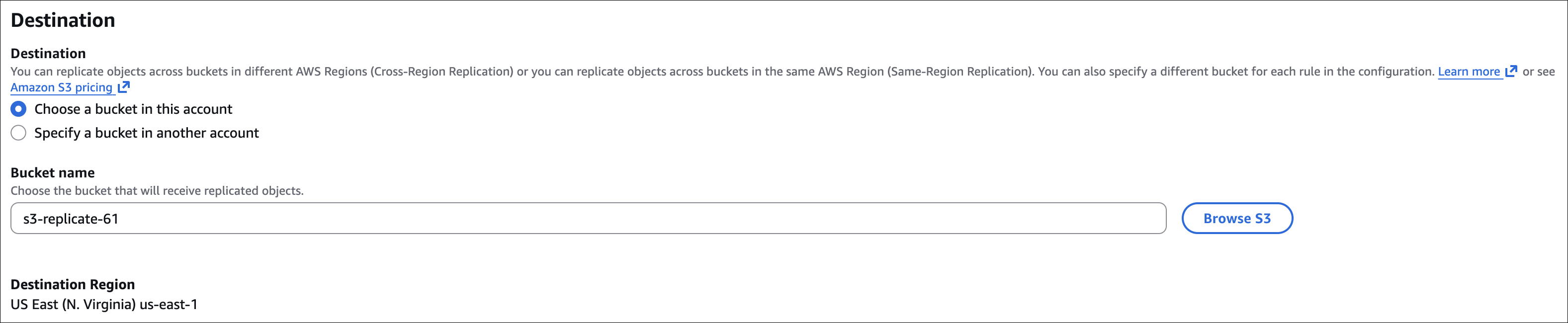
- Destination: Choose destination bucket (same or different region)
- IAM role: Select the role created above
- Options: Replicate delete markers (optional)
- Save

Test: Upload a new object to source bucket, check destination bucket - object should appear automatically.
New objects uploaded to source are automatically replicated to destination. Replication happens asynchronously (may take a few seconds). Existing objects are not replicated (only new uploads after replication is enabled).
Storage Classes
S3 has different storage classes based on how often you access data and cost. Pick the one that fits your needs.
Storage class is per object, not per bucket. When uploading, you choose the storage class. Don’t specify? Defaults to Standard. You can change it later or use lifecycle policies to automatically move objects around.
For detailed comparison, see AWS S3 Storage Classes Comparison.
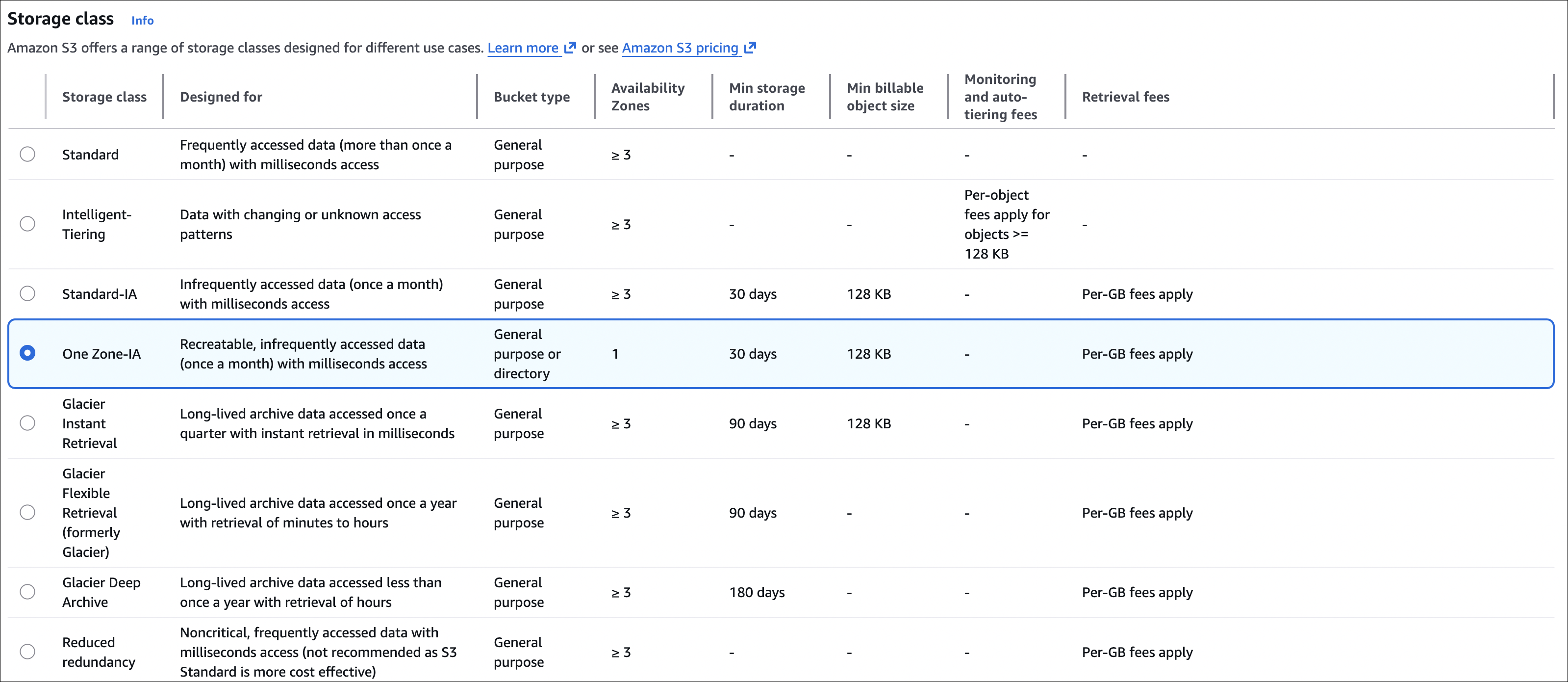
Minimum Storage Duration: If you delete or move an object before the minimum duration, you’re charged for the full minimum period. Example: Move to Standard-IA, delete after 10 days → charged for 30 days.
Applies to: Standard-IA (30 days), One Zone-IA (30 days), Glacier Instant Retrieval (90 days), Glacier Flexible Retrieval (90 days), Glacier Deep Archive (180 days).
Things to remember:
- You can change storage class anytime (lifecycle policies automate this)
- Lower cost = longer retrieval time or higher retrieval fees
- Use lifecycle policies to automatically move objects to cheaper classes as they age
- Standard is default for new uploads
S3 Express One Zone
Express One Zone is the fastest S3 storage class - designed for latency-sensitive stuff. Single-digit millisecond access, up to 10x faster than Standard.
Key features: single-digit millisecond access, 50% lower request costs than Standard, single AZ (you choose which one), crazy durability (11 nines), 99.95% availability, no minimum storage duration.
Use cases: high-performance apps needing ultra-low latency, ML training data, real-time analytics, gaming assets, media processing workflows.
Things to remember:
- Data loss risk if the AZ fails (single AZ, not multi-AZ like Standard)
- More expensive storage cost than Standard, but cheaper requests
- Must create a directory bucket (not regular bucket) to use Express One Zone
- Best for applications that need speed and can tolerate single-AZ risk
Lifecycle Policies
Lifecycle policies automatically move objects to cheaper storage classes or delete them based on age. Saves money by moving old data to cheaper storage.

Common rules: after 30 days → move to Standard-IA, after 90 days → Glacier Flexible Retrieval, after 180 days → Glacier Deep Archive, after 365 days → delete (if not needed).
Examples: object not accessed for 180 days? Move to Glacier Deep Archive. Old logs after 1 year? Delete automatically.
How to create: Bucket → Management → Lifecycle rules → Create lifecycle rule. Set filters (prefix, tags), add transitions (move to different storage class after X days), add expiration (delete after X days). Can have multiple rules for different prefixes.
Use cases:
- Log files: Standard → Glacier → Delete
- Backups: Standard → Glacier Deep Archive (keep forever)
- Media files: Standard → Standard-IA → Glacier
Requester Pays
Requester Pays makes the person accessing the bucket pay for data transfer and request costs instead of you (bucket owner).
How it works: you enable “Requester Pays” on the bucket. When someone accesses objects, they pay for downloads and requests (GET, PUT, etc.). You still pay for storage though. Requester must include x-amz-request-payer: requester header in requests.
Use cases: large datasets shared publicly (requester pays download costs), data sharing between AWS accounts (requester pays transfer), public data repositories (you don’t pay for everyone’s downloads).
Things to remember:
- Requester must be authenticated (IAM user/role) - anonymous requests don’t work
- Requester needs permission to access the bucket
- Only works with AWS SDK/CLI (not browser direct access)
- Bucket owner still pays storage costs
Event Notifications
S3 can automatically send notifications when stuff happens in your bucket (object created, deleted, etc.). Useful for triggering workflows without polling.
Event types: s3:ObjectCreated:* (object uploaded via PUT, POST, multipart upload, copy), s3:ObjectCreated:Put, s3:ObjectCreated:Post, s3:ObjectCreated:Copy, s3:ObjectCreated:CompleteMultipartUpload (multipart upload finished), s3:ObjectRemoved:* (object deleted), s3:ObjectRemoved:Delete, s3:ObjectRemoved:DeleteMarkerCreated (delete marker created with versioning), s3:ObjectRestore:* (object restored from Glacier), s3:ObjectRestore:Post (restore initiated), s3:ObjectRestore:Completed (restore completed).
Destinations: SNS Topic (subscribers get message), SQS Queue (send message to queue), Lambda Function (trigger Lambda), EventBridge (can route to multiple targets).
How to configure: Bucket → Properties → Event notifications → Create event notification. Event name: e.g., new-file-uploaded. Prefix/Suffix filters: optional, filter by object key (e.g., images/ prefix). Event types: select which events to trigger. Destination: choose SNS, SQS, Lambda, or EventBridge. Save.
Use cases:
- Upload image → trigger Lambda to resize/process
- New log file → send to SQS for processing
- File deleted → send notification to SNS
- Data uploaded → trigger ETL pipeline via EventBridge
Things to remember:
- Near real-time (usually within seconds)
- At-least-once delivery (may receive duplicate notifications)
- Can filter by prefix/suffix to target specific objects
- Each destination needs proper IAM permissions
Batch Operations
S3 Batch Operations lets you perform operations on millions of objects at once. Instead of processing objects one by one, you create a job that processes them in parallel.
Operations you can do:
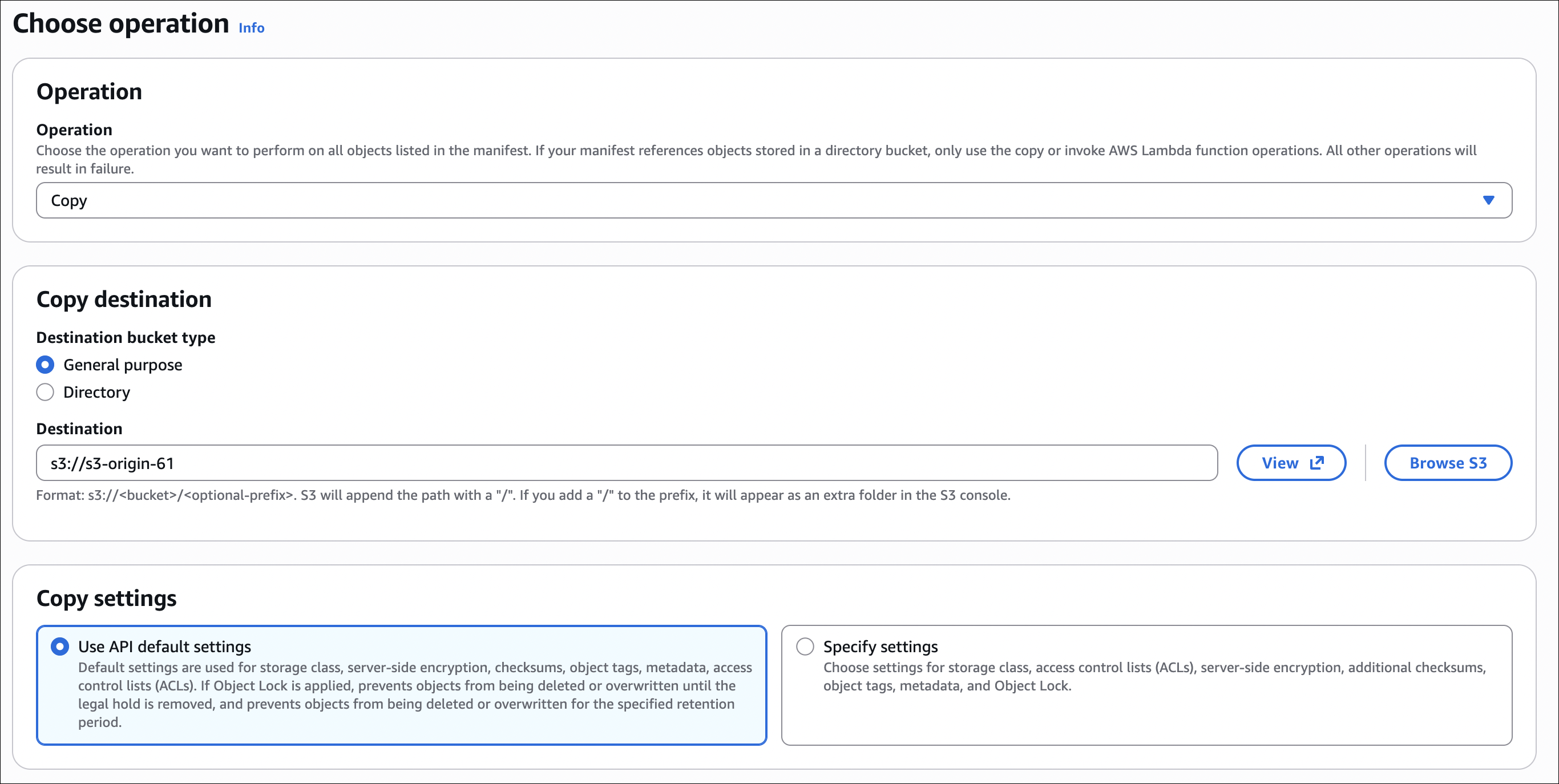
- Copy objects - copy to another bucket or change storage class
- Invoke Lambda - trigger Lambda function for each object
- Replace tags - add/update/delete object tags
- Set ACL - change object ACLs
- Restore from Glacier - restore archived objects
- Replace metadata - update object metadata
How it works:
- Create manifest - list of objects to process (CSV or S3 Inventory report)
- Create job - specify operation, manifest, IAM role, options
- Job runs - processes objects in parallel (millions at once)
- Completion report - shows success/failure for each object
Use cases: Copy existing objects for replication setup, change storage class for thousands of objects, add tags to existing objects, restore many objects from Glacier, update metadata across many files.
Things to remember:
- Processes objects in parallel (fast, even for millions)
- Job runs in background (check status in console)
- Completion report shows which objects succeeded/failed
- IAM role needs permissions for the operation
- You pay per operation (not per object)
Storage Lens
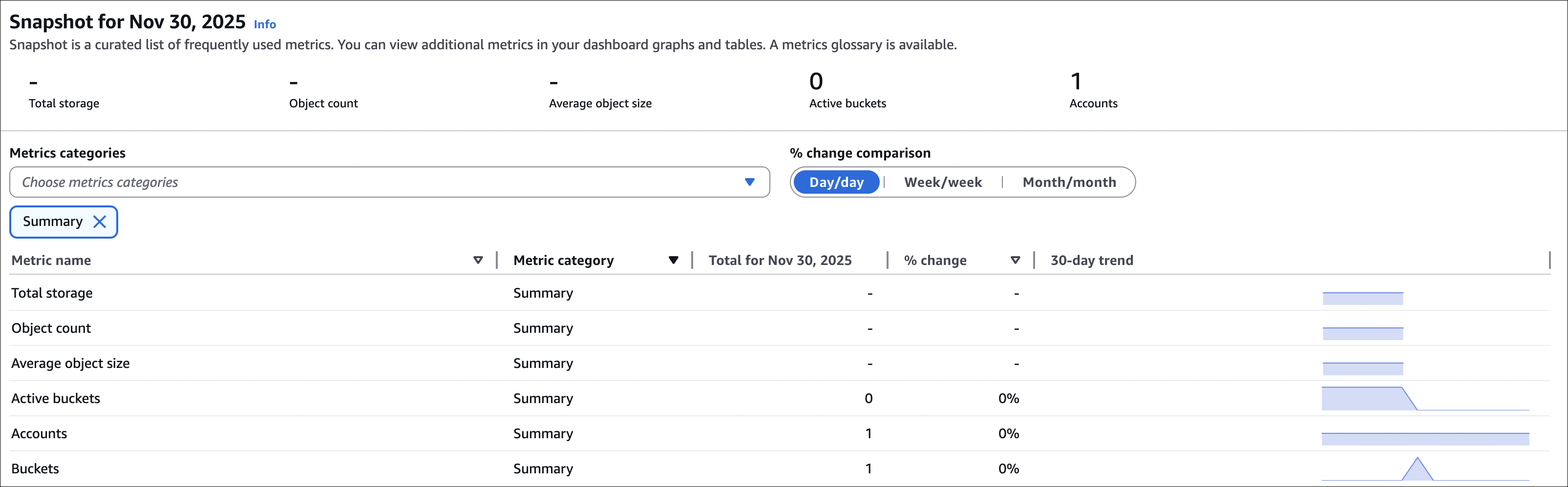
S3 Storage Lens provides organization-wide visibility into object storage usage and activity. It’s like a dashboard showing how you’re using S3 across all accounts and buckets.
What it shows: Storage usage by bucket, account, region. Storage class distribution (how much in Standard vs Glacier, etc.). Cost optimization opportunities. Activity metrics (requests, data transfer). Trends over time.
Features:
- Free tier - 14-day metrics for all buckets (default dashboard)
- Advanced metrics - 15-month history, prefix-level insights (paid)
- Organization-wide - view across multiple AWS accounts
- Export - CSV reports, CloudWatch metrics
Use cases: Find buckets with high storage costs, identify objects that should move to cheaper storage classes, track storage trends over time, optimize costs across organization.
How to access: S3 Console → Storage Lens (left sidebar). Default dashboard shows free metrics. Can create custom dashboards with filters.
Encryption
S3 encrypts data at rest (when stored) and in transit (when transferring).
Encryption at Rest:
Three options for encrypting objects when they’re stored:
SSE-S3 (Server-Side Encryption with S3 managed keys): AWS manages the encryption keys automatically. Free, no extra cost. AES-256 encryption. Keys are rotated regularly by AWS (you don’t see this). Simplest option - just enable default encryption on bucket. Use when: you want encryption but don’t need key management control.
SSE-KMS (Server-Side Encryption with KMS keys): AWS KMS manages the keys. You control key policies and who can access them. Audit trail in CloudTrail - you can see who accessed what, when. Key rotation: automatic for AWS managed keys (like aws/s3), manual for customer managed keys. Separate charges for KMS API calls (encrypt/decrypt operations). Use when: you need audit trails, fine-grained access control, or compliance requirements.
SSE-C (Server-Side Encryption with Customer-provided keys): You provide the encryption keys with each request. AWS doesn’t store your keys (most secure). You manage key lifecycle yourself (rotation, backup, etc.). Most control but most responsibility. Use when: you have strict regulatory requirements or need full key control.
Default Encryption: Set at bucket level (Properties → Default encryption). All new objects uploaded to the bucket are encrypted automatically. You can still override per object if needed. Important: doesn’t encrypt existing objects (only new uploads after enabling).
Encryption in Transit: Always use HTTPS (SSL/TLS) when accessing S3. S3 endpoints support HTTPS by default. Use https:// URLs in your applications. VPC Endpoints also encrypt traffic between your VPC and S3. If you use HTTP, data is not encrypted in transit.
Tips:
- SSE-S3 = free, automatic, AWS manages everything
- SSE-KMS = audit trail in CloudTrail, costs extra, you control key policies
- SSE-C = you manage keys yourself, AWS doesn’t store them
- Default encryption = bucket-level setting, only affects new objects
- In transit = always use HTTPS, HTTP is not encrypted
- KMS key rotation = automatic for AWS managed, manual for customer managed
Quick Reference:
When you see these phrases, here’s what to pick:
- “least operational overhead” → SSE-S3
- “regulatory compliance” / “audit trail” → SSE-KMS
- “customer manages keys” → SSE-C
- “AWS must never see the data unencrypted” → Client-side encryption
- “ensure all new objects are encrypted” → Default encryption
Default Encryption vs Bucket Policy:
Default Encryption is about encrypting objects (data protection). Bucket Policy is about access control (who can access objects). They’re different things - encryption protects data, policy controls access. You can have encryption without policy, or policy without encryption, or both.
Evaluation order: When someone tries to access an object, Bucket Policy is evaluated first (access control check). If access is allowed, then encryption/decryption happens. So: Policy → Encryption/Decryption.
Example Bucket Policy - Require Encryption:
You can use a bucket policy to enforce encryption on uploads. This policy denies any PUT request that doesn’t use SSE-KMS:
1
2
3
4
5
6
7
8
9
10
11
12
13
14
15
16
17
{
  "Version": "2012-10-17",
  "Statement": [
    {
      "Sid": "DenyInsecureConnections",
      "Effect": "Deny",
      "Principal": "*",
      "Action": "s3:PutObject",
      "Resource": "arn:aws:s3:::your-bucket-name/*",
      "Condition": {
        "StringNotEquals": {
          "s3:x-amz-server-side-encryption": "aws:kms"
        }
      }
    }
  ]
}
This forces all uploads to use SSE-KMS. You can also use "aws:kms" for SSE-KMS or "AES256" for SSE-S3.
CORS
CORS (Cross-Origin Resource Sharing) lets web pages from one domain access resources from another domain. Browsers block cross-origin requests by default for security.
When do you need CORS? When your website (e.g., https://example.com) tries to access S3 objects from JavaScript in the browser. Without CORS, browser blocks the request.
How it works: browser sends a preflight request (OPTIONS) first, asking “can I access this?”. S3 responds with CORS headers saying “yes, from these origins, with these methods”. Then the actual request happens.
How to configure: CORS is configured at bucket level, not via bucket policy. Go to S3 Console → Select your bucket → Permissions tab → Scroll down to Cross-origin resource sharing (CORS) → Edit → Paste your CORS configuration JSON → Save changes.
Example CORS Configuration:
1
2
3
4
5
6
7
8
9
[
  {
    "AllowedHeaders": ["*"],
    "AllowedMethods": ["GET", "PUT", "POST", "DELETE"],
    "AllowedOrigins": ["https://example.com", "https://www.example.com"],
    "ExposeHeaders": ["ETag"],
    "MaxAgeSeconds": 3000
  }
]
- AllowedOrigins: Which domains can access (use
*for all, but not recommended for production) - AllowedMethods: HTTP methods allowed (GET, PUT, POST, DELETE, HEAD)
- AllowedHeaders: Headers the browser can send
- ExposeHeaders: Headers browser can read from response
- MaxAgeSeconds: How long browser caches preflight response
Common use cases:
- Static website hosted on S3 accessing objects from another domain
- Web app uploading files directly to S3 from browser
- CDN accessing S3 objects
Things to remember:
- CORS is for browser requests only (not server-to-server)
- Configure on the bucket that serves the resources (not the requesting domain)
- Preflight requests are automatic - browser handles it
- If CORS is misconfigured, you’ll see CORS errors in browser console
- Use specific origins, not
*in production for security
MFA Delete
MFA Delete adds an extra layer of security - you need MFA (Multi-Factor Authentication) to permanently delete objects or disable versioning.
When MFA Delete is enabled, deleting an object version or disabling versioning requires your AWS credentials plus a code from your MFA device (like Google Authenticator or hardware token). Without MFA, you can’t permanently delete versions or disable versioning. Prevents accidental or malicious deletions.
How to enable:
MFA Delete requires MFA code during enable, so you typically use AWS CLI or API (not console UI). Here’s how:
- Enable versioning first (MFA Delete requires versioning)
- Bucket → Properties → Bucket Versioning → Enable
- Enable MFA Delete using AWS CLI:
1
2
3
4
aws s3api put-bucket-versioning \
  --bucket your-bucket-name \
  --versioning-configuration Status=Enabled,MFADelete=Enabled \
  --mfa "arn:aws:iam::account-id:mfa/username 123456"
Replace:
your-bucket-namewith your bucket nameaccount-idwith your AWS account IDusernamewith your IAM username123456with current MFA code from your device
Note: Console UI doesn’t support enabling MFA Delete directly - you need CLI or API because MFA code must be provided during the operation.
Important:
- Requires versioning to be enabled first
- Only root account or IAM user with
s3:PutBucketVersioningpermission can enable it - Once enabled, you need MFA to:
- Permanently delete object versions
- Delete delete markers
- Suspend versioning
- You can still delete objects normally (creates delete marker), but permanent deletion requires MFA
- MFA device must be configured for your AWS account/IAM user
Use cases:
- Compliance requirements (prevent accidental deletion)
- Extra protection for critical data
- Audit trail (who deleted what, when, with MFA)
Things to remember:
- MFA Delete is separate from versioning (versioning can be enabled without MFA Delete)
- You pay for MFA Delete API calls (small cost)
- If you lose MFA device, you can’t disable MFA Delete easily (contact AWS support)
- Works with both hardware MFA devices and virtual MFA devices (like Google Authenticator)
Access Logs
S3 Access Logs record all requests made to your bucket. Useful for security auditing, troubleshooting, and understanding usage patterns.
What gets logged: every request to your bucket (GET, PUT, POST, DELETE, HEAD). Logs include request time, requestor IP address, request method (GET, PUT, etc.), object key requested, response status code (200, 404, 403, etc.), request ID, user agent, referrer, bytes transferred.
How to enable: create a target bucket for logs (or use existing bucket). Logs bucket should be in same region as source bucket. Best practice: separate bucket for logs. Then configure logging on source bucket: go to source bucket → Properties → Server access logging → Edit → Enable → Target bucket: select the bucket where logs will be stored → Target prefix: optional folder path (e.g., logs/) → Save changes.
Log format:
Logs are stored as text files in the target bucket. Format is space-delimited. Example log entry:
1
79a59df900b949e55d96a1e698fbacedfd6e09d98eacf8f8d5218e7cd47ef2be mybucket [06/Feb/2019:00:00:38 +0000] 192.0.2.3 79a59df900b949e55d96a1e698fbacedfd6e09d98eacf8f8d5218e7cd47ef2be 3E57427F3EXAMPLE REST.GET.VERSIONING - "GET /mybucket?versioning HTTP/1.1" 200 - 113 - 7 - "-" "S3Console/0.4" - sigv4 ECDHE-RSA-AES128-GCM-SHA256 AuthHeader s3.amazonaws.com TLSv1.2
How to view logs:
- Go to target bucket (where logs are stored)
- Logs are organized by date:
YYYY-MM-DD-HHformat - Download log files and analyze (or use tools like Athena, CloudWatch Logs Insights)
Use cases:
- Security auditing (who accessed what, when)
- Troubleshooting access issues
- Understanding usage patterns
- Compliance requirements
- Detecting suspicious activity
Important:
- Logs are delivered on a best-effort basis (may be delayed)
- You pay for storage of log files in target bucket
- Logs bucket should have proper permissions (only S3 logging service can write)
- Don’t enable logging on the logs bucket itself (infinite loop)
- Logs can be large - use lifecycle policies to archive/delete old logs
- Logs don’t include requests made by bucket owner (unless you enable logging for all requests)
Presigned URLs
Presigned URLs give temporary access to S3 objects without making the bucket public. You generate a URL with an expiration time, and anyone with that URL can access the object until it expires.
You (with AWS credentials) generate a URL that includes object location, expiration time (e.g., 1 hour, 1 day), and signature (proves you have permission). Anyone with the URL can access the object until expiration, even without AWS credentials. After expiration, URL stops working.
Use cases:
- Share private files temporarily (download links)
- Allow users to upload files directly to S3 (without exposing credentials)
- Time-limited access to sensitive documents
- Download links in emails/applications
Important:
- URL expires after the specified time (can’t be revoked early)
- You need AWS credentials to generate presigned URLs (IAM user/role with S3 permissions)
- Presigned URL permissions match the credentials used to generate it
- If object is deleted, presigned URL returns 404
- Works for both GET (download) and PUT (upload) operations
- URL includes signature - if you change any part, it becomes invalid
- Use HTTPS presigned URLs for security
- Expiration time max is 7 days (604800 seconds) for IAM users, 1 hour for temporary credentials
Security considerations:
- Anyone with the URL can access the object (share carefully)
- Can’t revoke before expiration (only wait for expiration)
- Use short expiration times for sensitive data
- Monitor access logs to see who used presigned URLs
Object Lock
Object Lock prevents objects from being deleted or overwritten for a fixed period or indefinitely. Useful for compliance requirements (WORM - Write Once Read Many).
When Object Lock is enabled on a bucket, you can set retention periods on objects. Retention period: object can’t be deleted or overwritten until retention expires. Legal hold: object can’t be deleted or overwritten until legal hold is removed.
Two modes: Governance mode - users with s3:BypassGovernanceRetention permission can override retention, still maintains audit trail, use when you need flexibility but want protection. Compliance mode - no one can delete or overwrite, even root account, can’t be bypassed, use for strict compliance requirements.
How to enable:
- Enable Object Lock when creating bucket (can’t enable on existing bucket)
- Create bucket → Advanced settings → Object Lock → Enable
- Choose default retention mode (Governance or Compliance)
- Set default retention period (optional)
- Apply retention to objects:
- During upload: specify retention mode and period
- After upload: use
s3:PutObjectRetentionAPI
Use cases:
- Regulatory compliance (SEC, FINRA, etc.)
- Legal hold (preserve data during litigation)
- Audit requirements
- Data protection against accidental deletion
Important:
- Must enable when creating bucket (can’t add later)
- Requires versioning to be enabled
- Compliance mode is immutable (even root can’t delete)
- Governance mode can be bypassed with special permission
- Legal hold can be added/removed independently
- Retention period can be extended but not shortened
- Objects are protected even if bucket policy allows deletion
Glacier Vault Lock
Glacier Vault Lock applies a WORM (Write Once Read Many) policy to Glacier vaults. Once locked, the policy can’t be changed or deleted.
You create a vault lock policy (JSON) that defines retention rules. After you lock the policy, it becomes immutable - no one can change or delete it, even root account.
Lock process: create vault lock policy (JSON format), initiate lock (starts a 24-hour lock period), during 24 hours you can cancel or modify policy, after 24 hours policy locks automatically (can’t be changed).
Use cases:
- Regulatory compliance (long-term data retention)
- Legal requirements (preserve data for X years)
- Audit trails
- Data governance
Important:
- Policy locks after 24 hours (can’t be undone)
- Once locked, policy is immutable (even root can’t change)
- Applies to entire vault (not individual archives)
- Use for long-term compliance requirements
- Different from Object Lock (Object Lock is for S3, Vault Lock is for Glacier)
- Can’t delete vault while lock is active
Access Points
Access Points are network endpoints for S3 buckets. They give you a unique hostname and access policy for specific use cases, making it easier to manage access at scale.
Instead of accessing bucket directly, you create access points with their own unique hostname (e.g., my-access-point-123456789012.s3-accesspoint.us-east-1.amazonaws.com), access policy (who can access, what operations), and VPC endpoint (optional, for private access).
Each access point can have different permissions, even for the same bucket. Useful when you have multiple applications/teams accessing the same bucket with different requirements.
Use cases:
- Different applications need different access levels to same bucket
- Shared data lake (multiple teams, different permissions)
- Simplify access management (manage permissions per access point)
- VPC-only access (create VPC endpoint for access point)
- Cross-account access (easier than bucket policies)
How to create:
- Go to S3 Console → Access Points → Create access point
- General configuration:
- Access point name (must be unique in account/region)
- Bucket: select the bucket this access point will access
- Network origin: Internet or VPC
- VPC: if VPC origin, select VPC and VPC endpoint
- Access point policy:
- Define who can access and what operations
- Similar to bucket policy but scoped to this access point
- Example: allow specific IAM role to read from
data/prefix
- Block Public Access:
- Same settings as bucket (recommended: keep enabled)
- Create access point
Access point URL format:
1
https://access-point-name-account-id.s3-accesspoint.region.amazonaws.com
Or with object:
1
https://access-point-name-account-id.s3-accesspoint.region.amazonaws.com/object-key
Access point policy example:
1
2
3
4
5
6
7
8
9
10
11
12
13
{
  "Version": "2012-10-17",
  "Statement": [
    {
      "Effect": "Allow",
      "Principal": {
        "AWS": "arn:aws:iam::123456789012:role/DataAnalystRole"
      },
      "Action": ["s3:GetObject"],
      "Resource": "arn:aws:s3:us-east-1:123456789012:accesspoint/my-access-point/object/data/*"
    }
  ]
}
Important:
- Access point name must be unique in account/region
- Can have multiple access points for same bucket
- Access point policy is evaluated in addition to bucket policy (both must allow)
- VPC access points require VPC endpoint (private access)
- Can use access points with S3 operations (CLI, SDK, etc.)
- Access point ARN format:
arn:aws:s3:region:account-id:accesspoint/access-point-name - Object ARN format:
arn:aws:s3:region:account-id:accesspoint/access-point-name/object/object-key - Access points don’t change bucket behavior (versioning, encryption, etc. still apply)
- Can use access points with AWS services (Lambda, EMR, etc.)
Object Lambda
Object Lambda lets you add custom code to process objects as they’re retrieved from S3. Instead of modifying objects in the bucket, you transform them on-the-fly using Lambda functions.
When someone requests an object through an Object Lambda access point: request goes to Object Lambda access point, Lambda function is triggered, Lambda receives the original object from S3, Lambda processes/transforms the object (e.g., redact data, convert format, filter rows), transformed object is returned to requester.
The original object in S3 stays unchanged - transformation happens only when accessed.
Use cases:
- Redact sensitive data (PII, credit card numbers) before returning
- Convert file formats (CSV to JSON, XML to JSON)
- Filter data (return only specific columns/rows)
- Add watermarks to images
- Compress/decompress on-the-fly
- Personalize content based on user