AWS Notes: Lambda + DynamoDB + API Gateway + Cognito
Serverless means you don’t manage servers. AWS manages infrastructure, you just write code and pay for what you use.
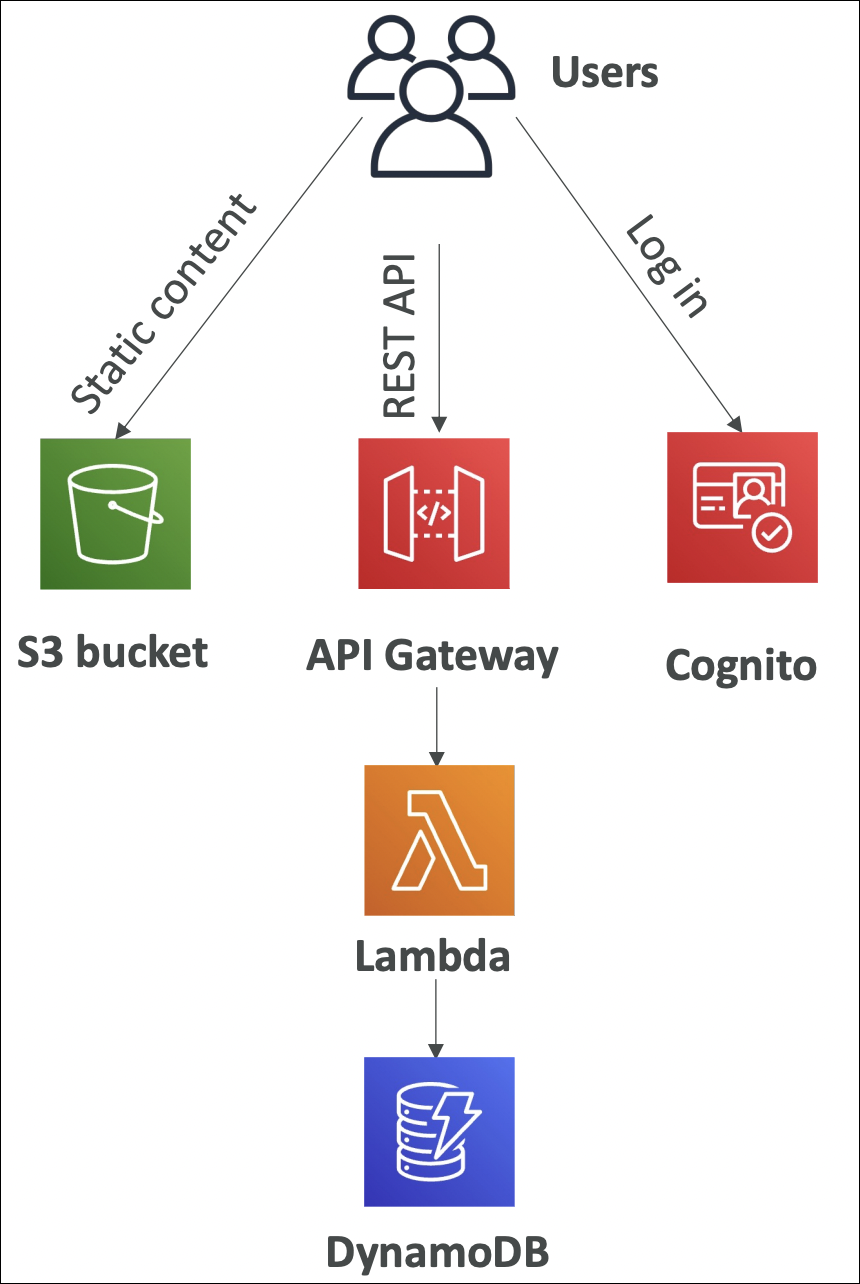
| Service | Description |
|---|---|
| Lambda | Run code without servers |
| API Gateway | Build REST APIs |
| DynamoDB | NoSQL database |
| S3 | Object storage |
| SNS | Pub/sub messaging |
| SQS | Message queue |
| Fargate | Run containers |
| App Runner | Build and run apps |
⚡ No server management, automatic scaling, pay per use, faster development.
AWS Lambda
Run code without managing servers. Write your function, upload it → Lambda runs it when triggered. Pay only when your code runs.
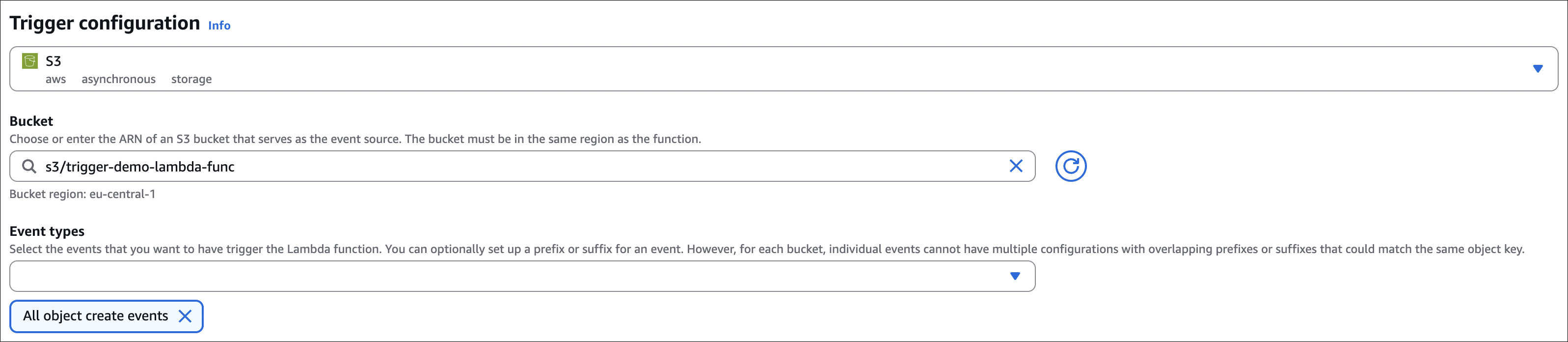
User uploads image to S3, you need to resize it. With EC2: Instance running 24/7 → $50/month even when idle. With Lambda: S3 triggers Lambda → Lambda resizes → $0.20 for 1000 resizes → automatic scaling.
- Choose runtime (Python, Node.js, Java, .NET, Ruby) or use custom runtime - AWS Lambda Runtimes
- Configure memory (128 MB - 10 GB) → CPU scales with memory
- Max 15 minutes execution time
- Default 1000 concurrent executions per region (can increase)
- Use Layers to share code/libraries across functions
- Store configuration/secrets with environment variables
- Connect to VPC for database/private resource access
Hands-On: Create a Lambda Function
Step 1: Create Function
Go to Lambda console → Create function → Choose Author from scratch:
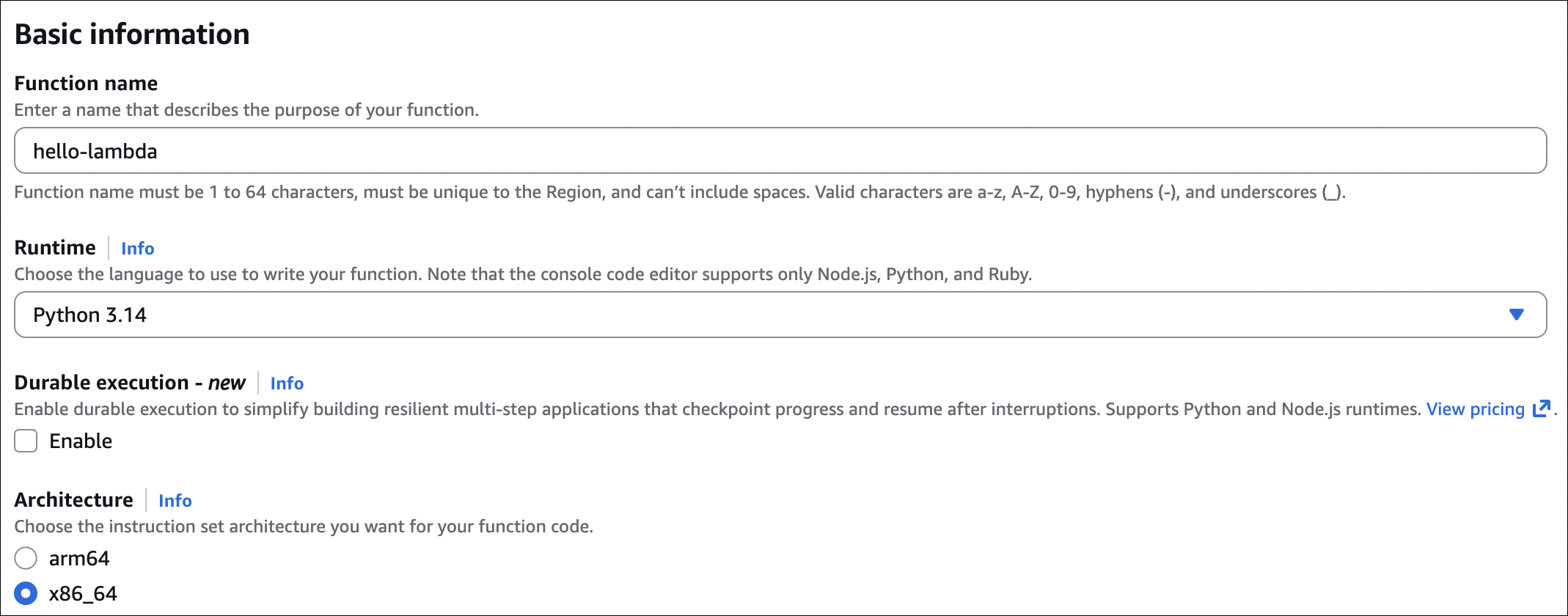
- Function name:
hello-lambda - Runtime: Python 3.14
- Architecture: x86_64
- Click Create function
Step 2: Write Function Code
In the Code tab, replace the default code with:
1
2
3
4
5
6
7
import json

def lambda_handler(event, context):
    return {
        'statusCode': 200,
        'body': json.dumps('Hello from Lambda!')
    }
Click Deploy to save.
Step 3: Test Function
Click Test → Create new test event → Use default event template → Name it test-event → Click Save → Click Test again.
You’ll see the execution result with status code 200 and the message “Hello from Lambda!”.
Step 4: View Logs
Go to Monitor tab → Click View CloudWatch logs → See execution logs, duration, memory used, etc.
That’s it! Your Lambda function is running. You can trigger it manually (Test), via API Gateway, S3 events, or other triggers.
Lambda Limits
- Memory can be configured from 128 MB to 10 GB (CPU scales with memory)
- Max execution time is 15 minutes
- Deployment package size is 50 MB (zipped) or 250 MB (unzipped) - use S3 for larger packages
- Environment variables total size is 4 KB
- Max 5 layers per function
- Default 50 concurrent executions per region for new accounts (can request increase)
- Temporary storage (
/tmpdirectory) is 512 MB to 10 GB - Request/response payload is 6 MB (synchronous) or 256 KB (asynchronous)
- Function code size is 3 MB for inline code editor, larger packages via S3 or container image
- Max 250 ENIs per VPC (can request increase)
Cold Start
When Lambda creates a new execution environment, it needs to initialize the runtime, load your code, and set up the environment. This first invocation takes longer - this is called cold start. Subsequent invocations reuse the same execution environment, so they’re faster (warm start).
Cold start duration depends on runtime (Python/Node.js are faster, Java/.NET are slower), memory size (more memory = faster cold start), and code size (larger packages = slower cold start). VPC connections also add latency to cold starts.
Provisioned concurrency pre-warms a specific number of execution environments to avoid cold starts. Lambda keeps these environments ready, so your function starts immediately. You pay for provisioned concurrency even when not in use. Good for predictable traffic patterns, APIs that need low latency, or critical functions that can’t tolerate cold starts.
Lambda SnapStart
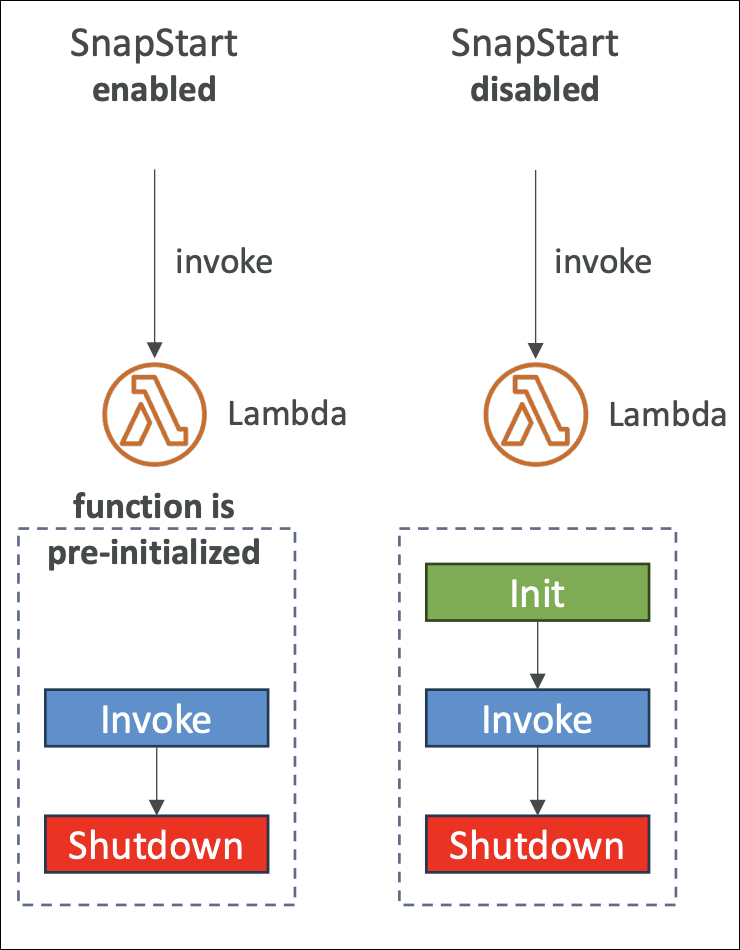
SnapStart reduces cold start time by taking a snapshot of your initialized function. When Lambda needs a new execution environment, it restores from this snapshot instead of starting from scratch.
After you publish a function version, Lambda runs it once to initialize everything (runtime, code, dependencies). Then it takes a snapshot of this ready state. When a cold start happens, Lambda restores from the snapshot - much faster than initializing everything again.
Limitations: Requires publishing a new version (not just updating $LATEST). Snapshots are created per published version. If your code or dependencies change, publish a new version. Doesn’t work with provisioned concurrency, EFS, or temporary storage larger than 512 MB.
Supported runtimes: Java 11+, Python 3.12+, .NET 8+
Concurrency & Throttling
Default account-level concurrency is 50 concurrent executions per region for new accounts. This limit is shared across all functions in that region. If you have 10 functions and all try to run at once, they share this 50 limit. You can request AWS to increase this limit up to tens of thousands.

You can set reserved concurrency for a specific function (e.g., 10). That function can use max 10 concurrent executions, and the remaining 40 is available for other functions. Useful to protect downstream resources (database, API) from being overwhelmed.

Throttling happens when a Lambda invocation arrives but the concurrency limit is full. Lambda can’t start a new execution environment, so the request is rejected (not queued).
For synchronous invocations (API Gateway, direct invoke): Lambda returns 429 Too Many Requests error immediately. You need to handle retries yourself.
For asynchronous invocations (S3, SNS, EventBridge): Lambda automatically retries throttled requests with exponential backoff. If retries fail, the event goes to DLQ (Dead Letter Queue) or EventBridge for further processing.
Example: You have 50 account-level concurrency. Function A has reserved concurrency of 10. Function B has no reserved concurrency. If Function A uses all 10, Function B can still use up to 40. If Function B tries to use 50, it gets throttled after 40.
Lambda@Edge
Lets you run Lambda functions at CloudFront edge locations, closer to your users. Instead of running in one region, your function runs at edge locations worldwide.
You write and deploy a Lambda function in one region (e.g., us-east-1). When you associate it with a CloudFront distribution, AWS automatically replicates your function code to all CloudFront edge locations worldwide. When CloudFront receives a request, it can trigger your Lambda function at different points: viewer request, viewer response, origin request, or origin response. Your function runs at the edge location closest to the user - no need to go back to your origin region.
CloudFront Functions
Lightweight alternative to Lambda@Edge for simple edge computing tasks. It runs JavaScript code at CloudFront edge locations with sub-millisecond latency.
Write JavaScript code (no Node.js runtime needed). Deploy it to CloudFront and associate it with a behavior. CloudFront Functions runs only at viewer request or viewer response events - before or after CloudFront checks the cache. It cannot run at origin request or origin response events (use Lambda@Edge for those).
CloudFront Functions vs Lambda@Edge - Use Cases
| CloudFront Functions | • URL rewrites • Header manipulation • Query string modifications • Simple redirects • Cookie manipulation • Lightweight request/response transformation |
| Lambda@Edge | • Customize content based on user location • A/B testing • Authentication/authorization at the edge • Generate responses without hitting origin • Origin request/response handling • Complex logic requiring network access • File system operations |
CloudFront Functions vs Lambda@Edge
| Feature | CloudFront Functions | Lambda@Edge |
|---|---|---|
| Runtime | JavaScript only | Node.js, Python |
| Execution time | Max 1 ms | Max 5 seconds |
| Code size | Max 10 KB | Max 128 MB memory |
| Latency | Sub-millisecond | Milliseconds |
| Cost | Cheaper | More expensive |
| Network access | No | Yes |
| File system access | No | Yes |
| Events | Viewer request, Viewer response only | Viewer request, Viewer response, Origin request, Origin response |
Lambda in VPC
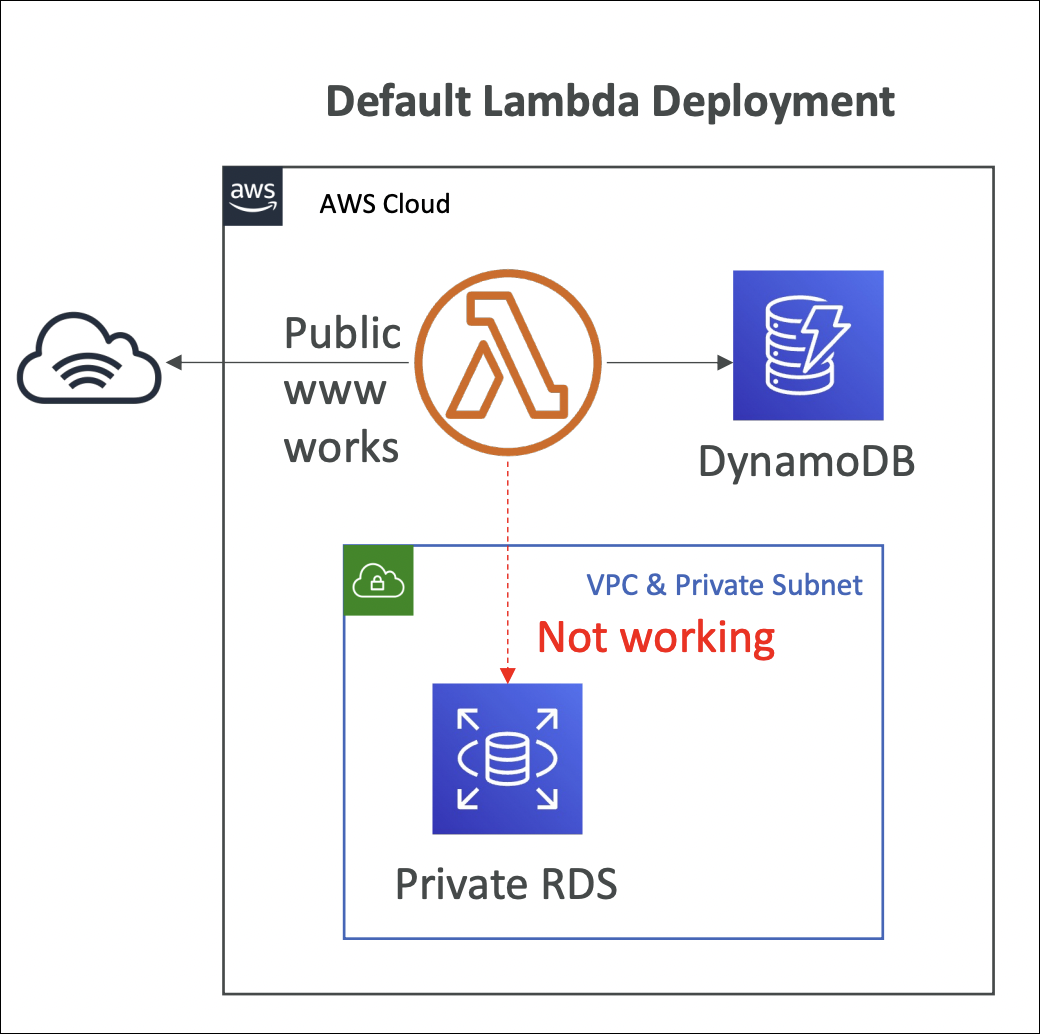
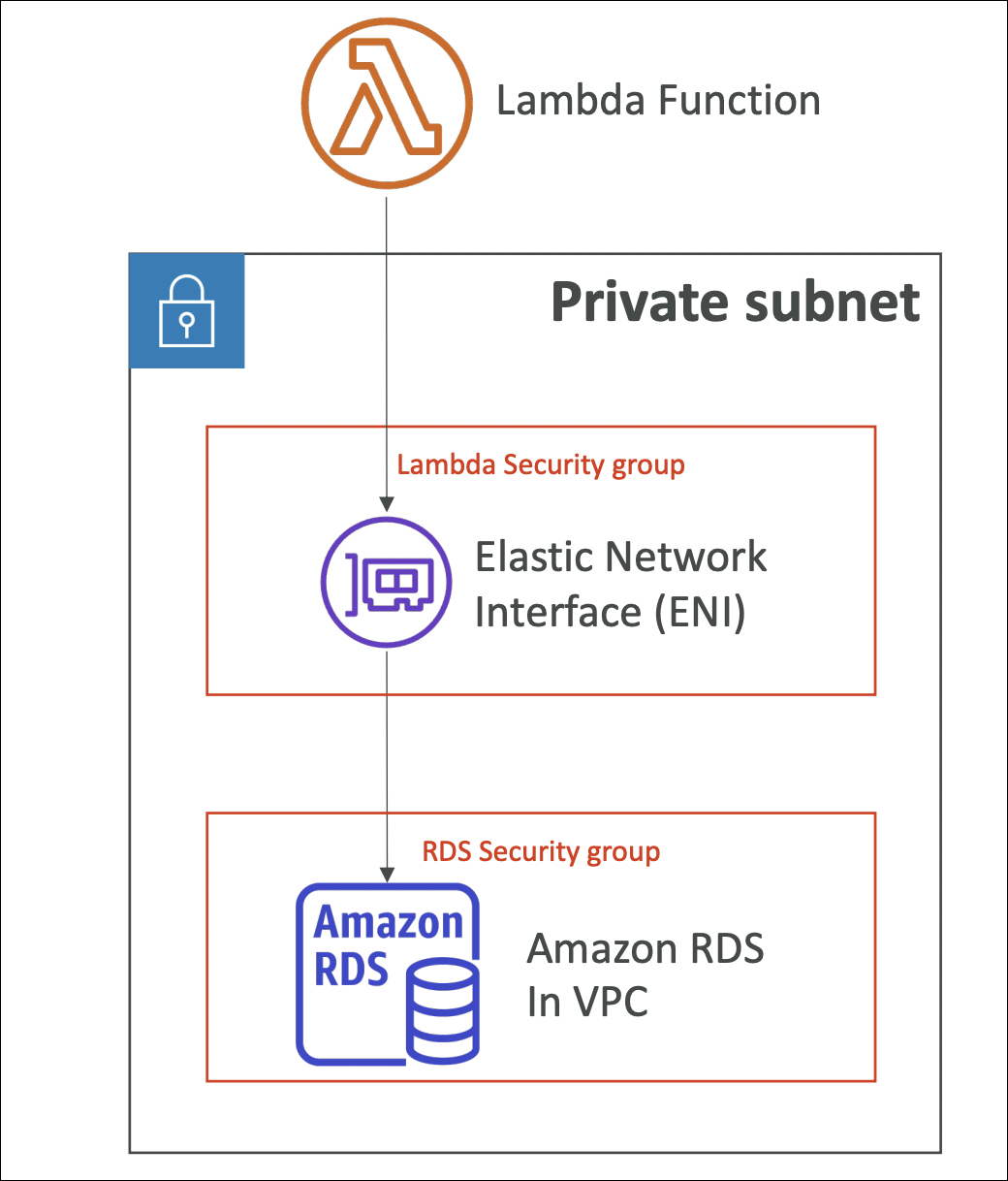
By default, Lambda functions run in AWS-managed VPCs and can only access public internet and AWS services. To access private resources (RDS databases, ElastiCache, internal APIs), you need to connect your Lambda function to your VPC.
When you configure VPC settings, Lambda creates ENIs (Elastic Network Interfaces) in your VPC subnets. Your function gets a private IP address from your VPC and can access resources in that VPC. Lambda needs permissions to create/manage ENIs - this is handled by the execution role.
Invoking Lambda from RDS & Aurora
You can invoke Lambda functions directly from within your RDS or Aurora database instance. This allows you to process data events from within the database using database triggers or stored procedures.
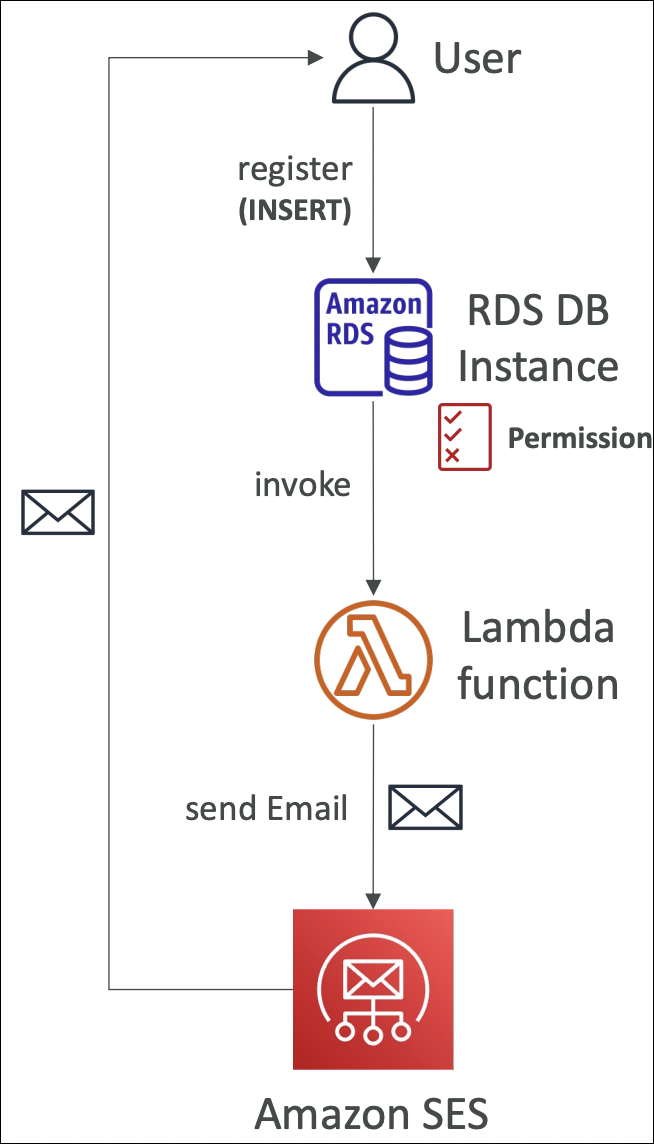
Supported for RDS for PostgreSQL and Aurora MySQL.
From within your database (using SQL functions or triggers), you can call Lambda functions. The database makes an HTTP request to Lambda’s invoke API, and Lambda processes the request.
DB instance must have outbound traffic to Lambda. Options: Public subnet, NAT Gateway, or VPC endpoints (Lambda endpoint).
Lambda function must allow the RDS/Aurora service to invoke it (Lambda resource-based policy).
If using IAM authentication, DB instance role needs
lambda:InvokeFunctionpermission (IAM policy).Database triggers that call Lambda (e.g., INSERT triggers), stored procedures that invoke Lambda, real-time data processing from database events, or integrating database operations with serverless functions.
RDS Event Notifications
RDS Event Notifications tell you about the DB instance itself (created, stopped, started, failover, etc.), not about the data inside the database. You don’t get information about INSERT, UPDATE, or DELETE operations - only instance-level events.
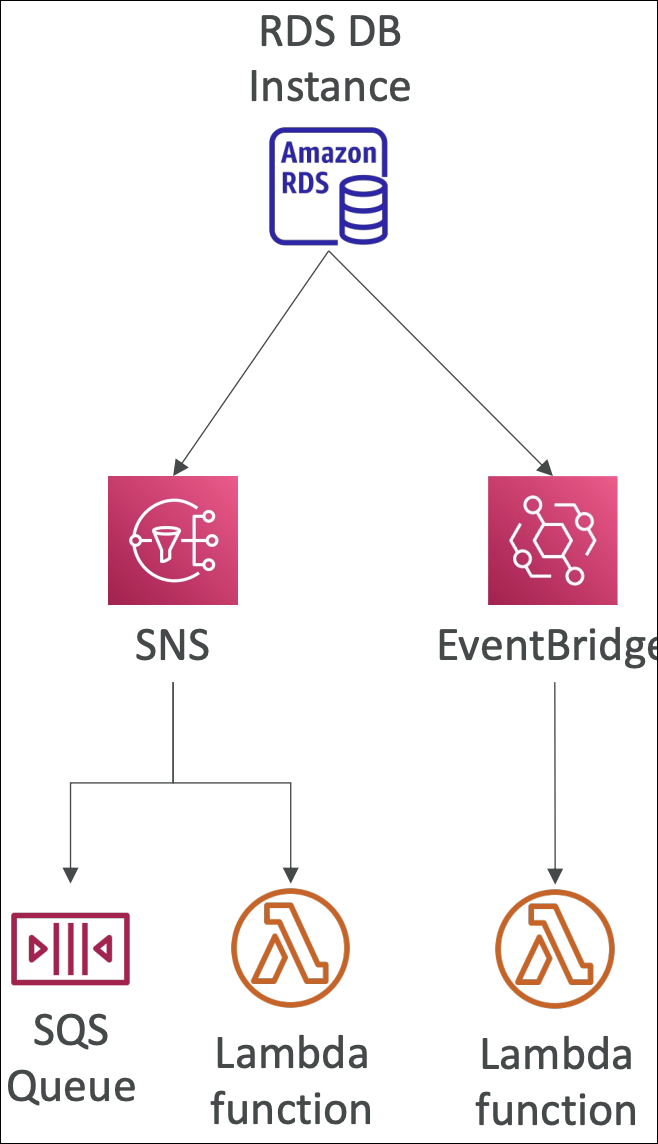
You can subscribe to event categories: DB instance, DB snapshot, DB Parameter Group, DB Security Group, RDS Proxy, Custom Engine Version.
Configure event subscriptions in RDS console → Select event categories → Choose destination (SNS topic or EventBridge). Events are sent near real-time (up to 5 minutes delay). Lambda can subscribe to SNS topic or EventBridge rule to process these events.
Useful for monitoring database lifecycle events, reacting to instance failures, tracking configuration changes, automating responses to database events, or integrating with monitoring/alerting systems.
RDS instance stops → Event notification sent to SNS → Lambda subscribed to SNS processes event → Lambda sends alert or takes remediation action.
Amazon DynamoDB
Fully managed NoSQL database service. Serverless by default - no servers to manage, automatic scaling, pay per use. Perfect for serverless architectures.
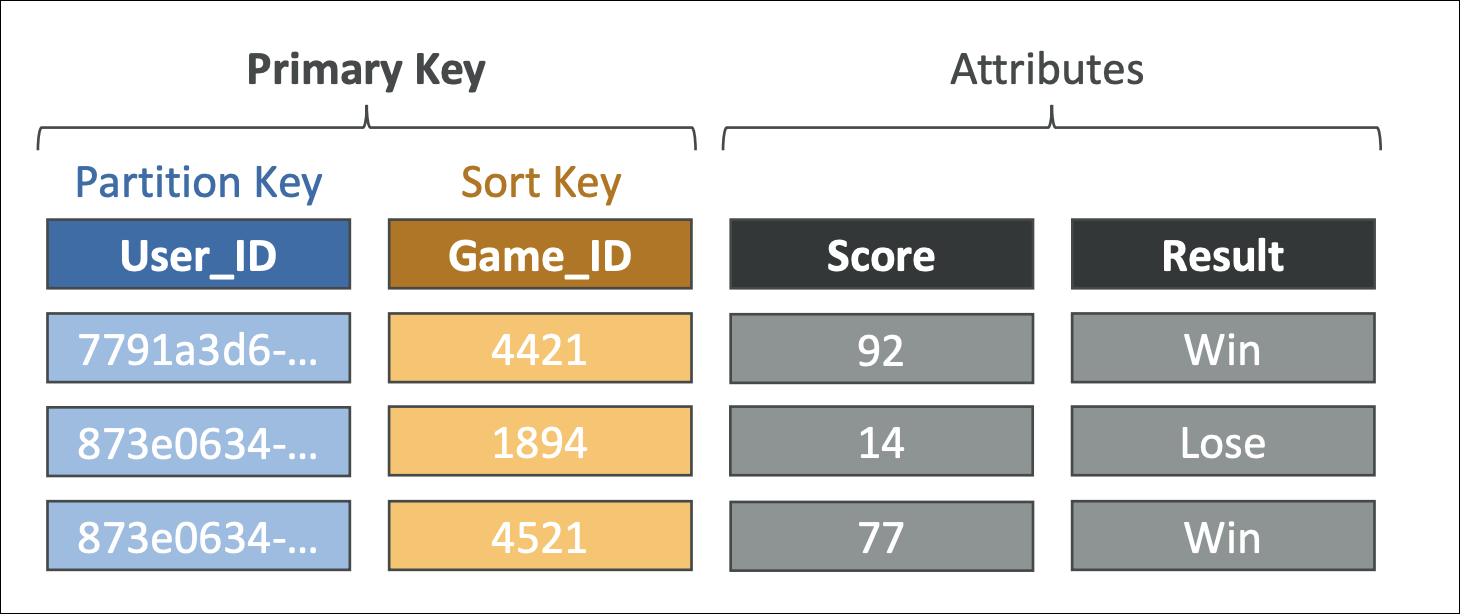
Tables are containers for your data. Each table has a primary key (partition key or partition key + sort key).
Items are rows in your table - each item is a collection of attributes (key-value pairs). Items can have different attributes (schema-less).
Attributes are key-value pairs within an item.
Primary key uniquely identifies each item. Two types: Partition key only (simple primary key) or Partition key + Sort key (composite primary key).
You create tables, define primary keys, and start writing data. DynamoDB automatically handles partitioning, replication, and scaling.
Scales up and down based on traffic. No capacity planning needed with on-demand mode.
Global Tables provide multi-region, multi-active replication - write to any region, data replicates automatically.
Streams capture changes to your table (INSERT, UPDATE, DELETE) in real-time and can trigger Lambda functions.
TTL automatically deletes items after a specified time - useful for session data, temporary records.
Point-in-time recovery lets you restore table to any point in time within the last 35 days.
On-demand backups and continuous backups with point-in-time recovery available.
Useful for API backends, session management, gaming leaderboards, IoT data, real-time applications, or any application needing low-latency, scalable NoSQL database.
Capacity Modes
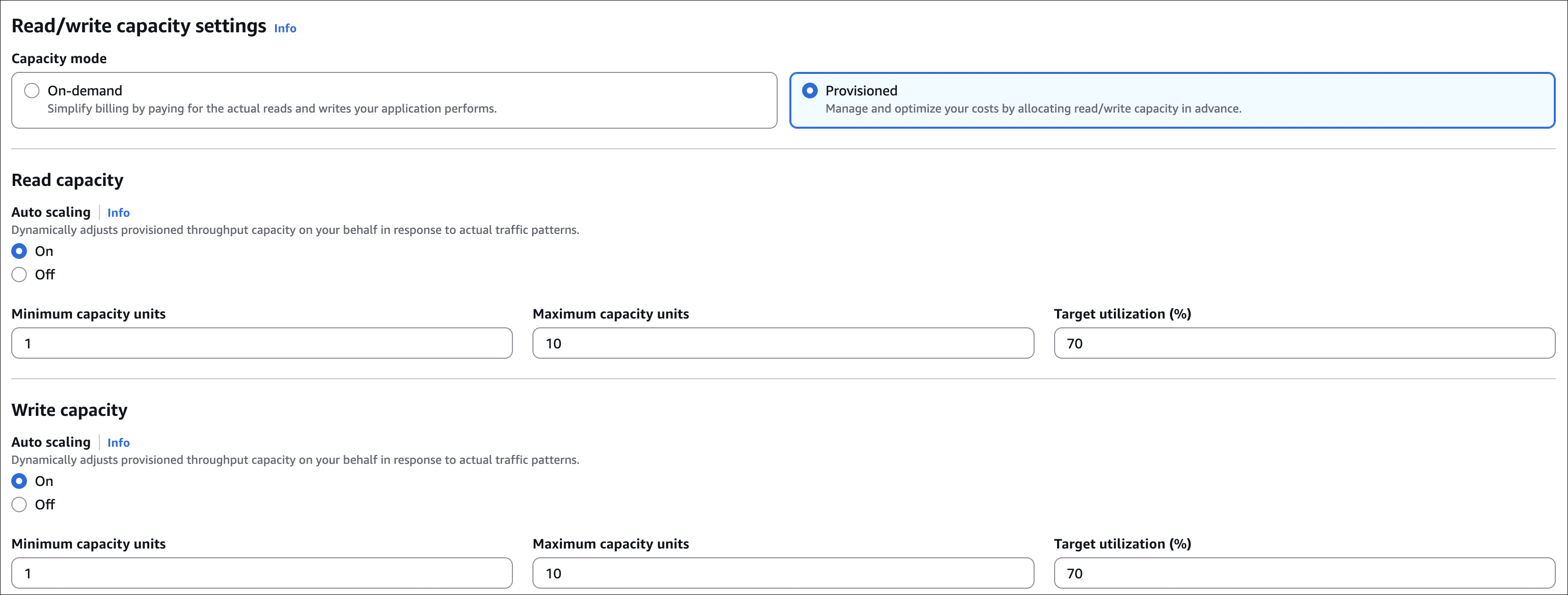
Provisioned capacity: You specify read capacity units (RCU) and write capacity units (WCU). Pay for provisioned capacity even if unused. Can use auto-scaling to adjust capacity automatically. Good for predictable workloads.
On-demand capacity: Pay per request. No capacity planning needed. Automatically scales to handle traffic. Good for unpredictable workloads or new applications. More expensive per request but no wasted capacity.
Hands-On: Create DynamoDB Table
Step 1: Create Table
Go to DynamoDB console → Create table:

- Table name:
users - Partition key:
user_id(String) - Sort key: Leave empty (simple primary key) or add
timestamp(Number) for composite key - Table settings: Use default settings or customize:
- Capacity mode: Choose On-demand (pay per request) or Provisioned (specify RCU/WCU)
Click Create table.
Step 2: Add Items
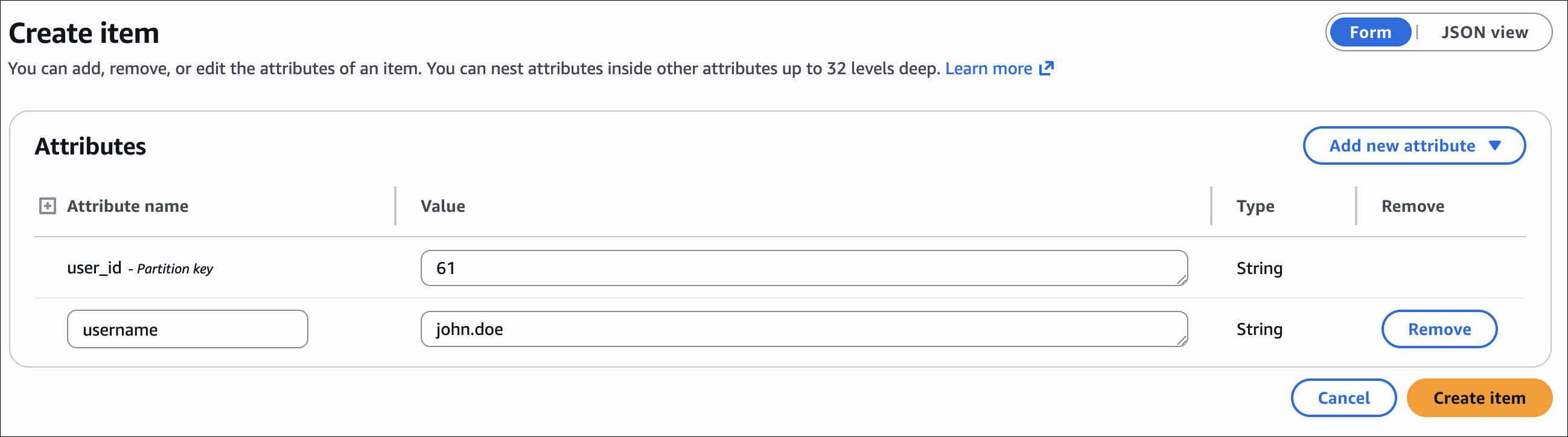
Go to your table → Explore table items → Create item:
- Add attributes:
user_id(String, value:user-123),name(String, value:John),email(String, value:john@example.com),age(Number, value:30) - Click Create item
DynamoDB Advanced Features
DAX (DynamoDB Accelerator)
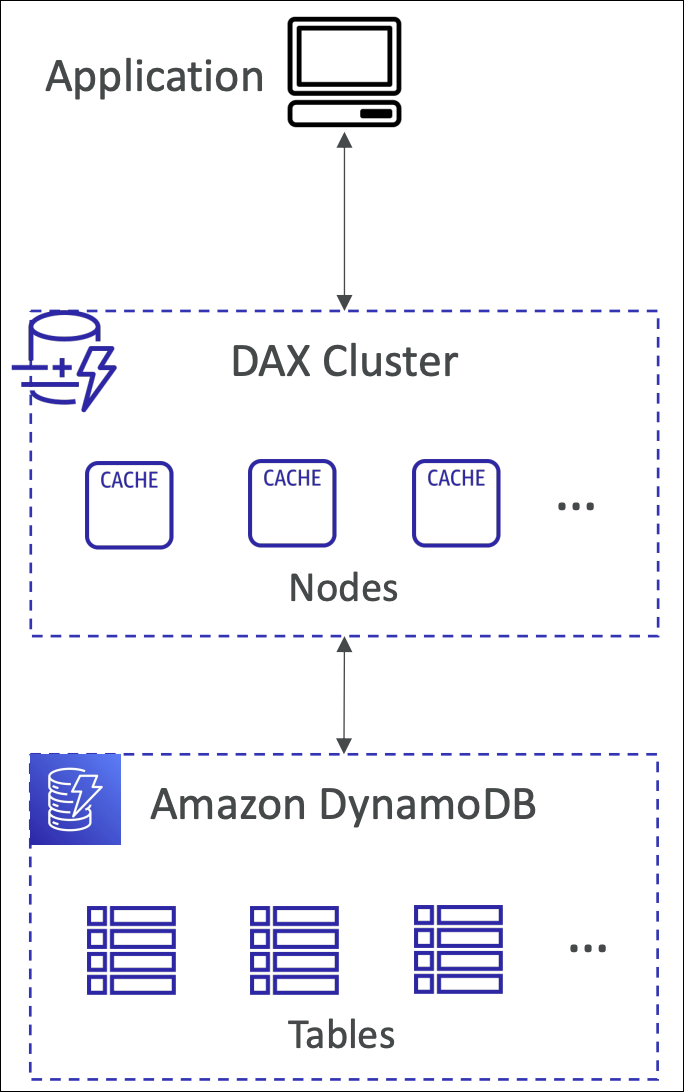
In-memory caching layer for DynamoDB. Reduces read latency from milliseconds to microseconds. Fully managed, highly available, write-through caching.
Your application reads from DAX cluster → DAX checks cache → If cache hit, returns immediately. If cache miss, reads from DynamoDB → Caches result → Returns to application. Writes go through DAX to DynamoDB (write-through).
Useful for read-heavy workloads, applications needing microsecond latency, gaming leaderboards, real-time dashboards, or any application with high read traffic.
Only caches eventually consistent reads. Strongly consistent reads bypass cache. Additional cost for DAX cluster.
Global Tables
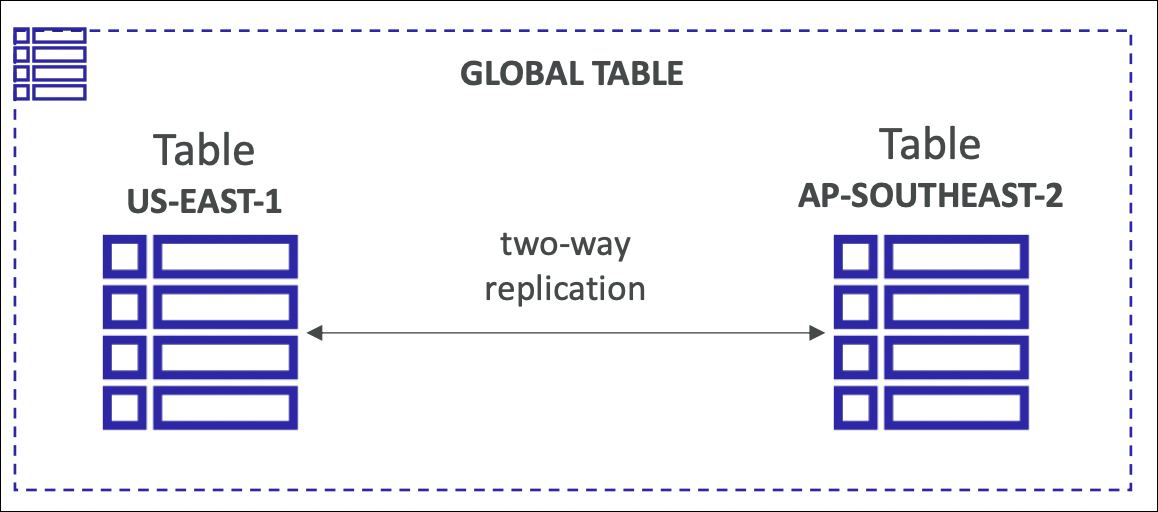
Multi-region, multi-active replication. Write to any region, data replicates automatically to all regions. Provides global low-latency access and disaster recovery.
Enable Global Tables → Add regions → DynamoDB replicates data across all regions automatically. Each region can handle reads and writes independently.
Useful for global applications, disaster recovery, low-latency access worldwide, or multi-region active-active architecture.
DynamoDB Streams
Your application writes data to DynamoDB. But you also need to do something else when data changes - send email, update another system, maintain aggregates, or replicate data. Without Streams, you’d have to poll the table constantly or modify your application code to call multiple services.
DynamoDB Streams captures every change to your table (INSERT, UPDATE, DELETE) in real-time and stores them as stream records. You can have Lambda, Kinesis, or other consumers process these records automatically.
Enable streams on your table → Every time data changes, a stream record is created → Stream record contains old item image, new item image, event type (
INSERT,MODIFY,REMOVE), and sequence number → Your Lambda function (or other consumer) processes these records → Process records in order per partition key (important for maintaining consistency).Example: User updates their profile in DynamoDB → Streams captures the change → Lambda function processes the stream record → Lambda sends notification email, updates search index, and maintains user statistics - all automatically without modifying your main application code.
Useful for real-time data processing, maintaining aggregates (counts, totals), replicating data to other systems, triggering workflows, audit logging, or building event-driven architectures where changes trigger other actions.
DynamoDB Streams vs Kinesis Data Streams
DynamoDB Streams is specifically for DynamoDB table changes - when data in your table changes, streams capture it. Retention is 24 hours. Use it when you want to react to DynamoDB changes.
Kinesis Data Streams accepts data from any source (applications, IoT, logs, etc.), not just DynamoDB. Retention is 1-365 days (configurable). Use it when you need to ingest streaming data from multiple sources, need longer retention, or have multiple consumers processing the same data independently.
TTL (Time To Live)
Automatically delete items after a specified time. Set a TTL attribute on items → DynamoDB deletes expired items automatically (within 48 hours).
Useful for session data, temporary records, log retention, or any data with expiration requirements.
Transactions
All-or-nothing operations across multiple items. Either all operations succeed or all fail. Supports up to 25 items or 4 MB of data per transaction.
Useful for financial transactions, maintaining consistency across multiple items, or atomic operations.
On-Demand Backup & Restore
Create on-demand backups anytime. Restore to new table or point-in-time recovery (restore to any point within 35 days).
Useful for backup before major changes, disaster recovery, or compliance requirements.
S3 Export & Import
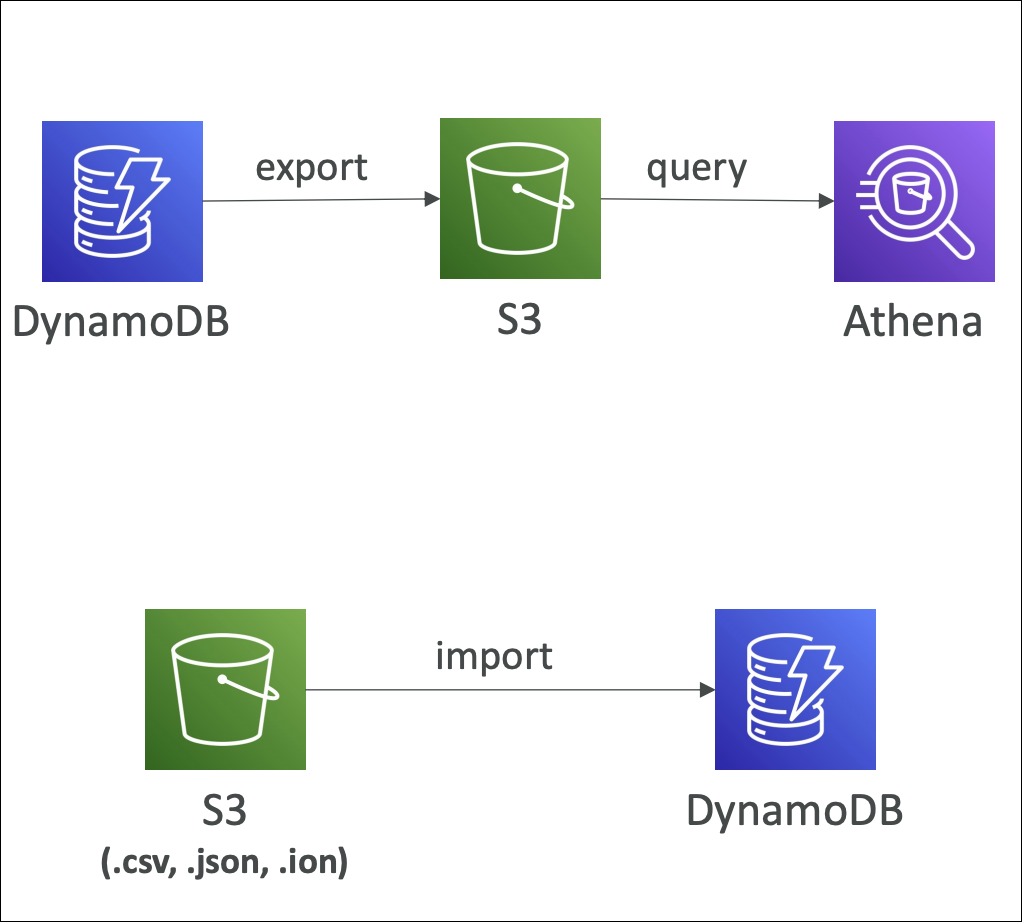
Export DynamoDB table data to S3 in DynamoDB JSON or Amazon Ion format. Useful for data analysis, archival, or backup to S3. Export runs asynchronously - you can check status in console.
Import data from S3 to DynamoDB table. S3 files must be in DynamoDB JSON or Amazon Ion format. Import creates a new table or adds data to existing table. Useful for bulk data loading, migration, or restoring from S3 backups.
Export: Table → S3 (DynamoDB JSON or Amazon Ion format) → Use for analysis, archival, backup.
Import: S3 (DynamoDB JSON or Amazon Ion format) → Table → Use for bulk loading, migration, restore.
Both operations run asynchronously and can handle large datasets. No impact on table performance during export/import.
API Gateway
Fully managed service to create, publish, maintain, monitor, and secure REST and WebSocket APIs. Acts as a front door for your backend services (Lambda, EC2, ECS, or any HTTP endpoint).
You have backend services (Lambda functions, EC2 instances, etc.) but need a way to expose them as APIs. You’d have to manage load balancing, SSL certificates, authentication, rate limiting, monitoring yourself.
API Gateway provides a managed API layer. You define API endpoints, connect them to your backend, and API Gateway handles routing, authentication, throttling, monitoring, and more.
Create an API → Define resources and methods (GET, POST, PUT, DELETE) → Configure integration (Lambda, HTTP endpoint, AWS service) → Deploy to stage (dev, prod) → Get API endpoint URL → Clients call your API.

REST APIs provide RESTful HTTP APIs. HTTP APIs have lower latency and cost, built on HTTP/2, good for Lambda. WebSocket APIs enable real-time bidirectional communication.
Throttling provides rate limiting. Default 10,000 requests per second per region (can request increase). Burst limit 5,000 requests.
Authorization options include IAM, Lambda authorizer, Cognito User Pools, or API keys.
Caching stores API responses. TTL configurable (0-3600 seconds). Reduces backend load.
CORS can be enabled for browser-based applications.
Stages allow deploying to different environments (dev, staging, prod). Each stage has its own URL.
Useful for API backends for mobile/web apps, microservices architecture, serverless applications, real-time applications (WebSocket), or exposing AWS services as APIs.
Endpoint Types
Edge-optimized (default) routes requests through CloudFront edge locations. Lowest latency for global clients. Good for public APIs with users worldwide.
Regional endpoints go directly to API Gateway in one region. Lower latency for clients in same region. Good for APIs with regional users or VPC integration.
Private endpoints are only accessible from within your VPC. Use VPC endpoint to access. Good for internal APIs, microservices within VPC.
Hands-On: Create Regional REST API
Step 1: Create API
Go to API Gateway console → Create API → Choose REST API → Click Build:
- Protocol: REST
- Create new API: New API
- API name:
my-rest-api - Endpoint Type: Regional
- Description: (optional)
- Click Create API
Step 2: Create Resource
In your API → Actions → Create Resource:
- Resource Name:
users - Resource Path:
/users(auto-filled) - Enable API Gateway CORS: (optional, enable if needed)
- Click Create Resource
Step 3: Create Method
Select /users resource → Actions → Create Method → Choose GET:
- Integration type: Lambda Function
- Lambda Region: Select your region
- Lambda Function: Select your Lambda function (or create new one)
- Use Lambda Proxy integration: Enable (recommended for Lambda)
- Click Save → Click OK to grant permissions

Step 4: Test API
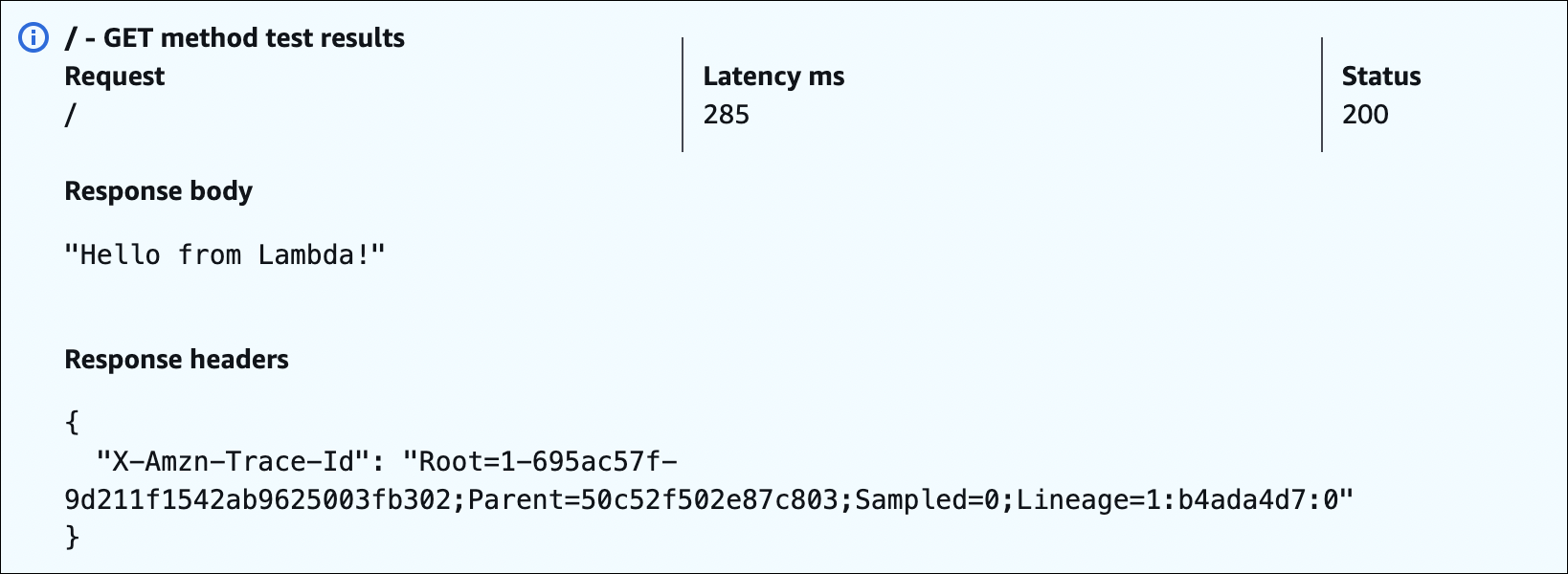
After deployment, you’ll see your Invoke URL (e.g., https://abc123.execute-api.us-east-1.amazonaws.com/dev). Click on GET method → Click TEST → Click Test button. You’ll see the response from your Lambda function.
AWS Step Functions
Serverless workflow orchestration service. Coordinates multiple Lambda functions or AWS services into a workflow.
Example: Process order → Validate payment → Send confirmation email → Update inventory. Instead of writing code to coordinate these steps, you define a visual workflow. Step Functions runs each step in order, handles errors and retries automatically.
Standard workflows - Long-running (up to 1 year), maintains state
Express workflows - High-volume, short-duration (up to 5 minutes), no state history
Useful when you have multiple steps that need to run in sequence or parallel, with error handling and retries.
Amazon Cognito
Managed authentication and user management service. Handles user sign-up, sign-in, password management, and user profiles. No need to build your own authentication system.
Your application needs user authentication (sign-up, sign-in, password reset). You’d have to build user database, password hashing, email verification, MFA, social login yourself.
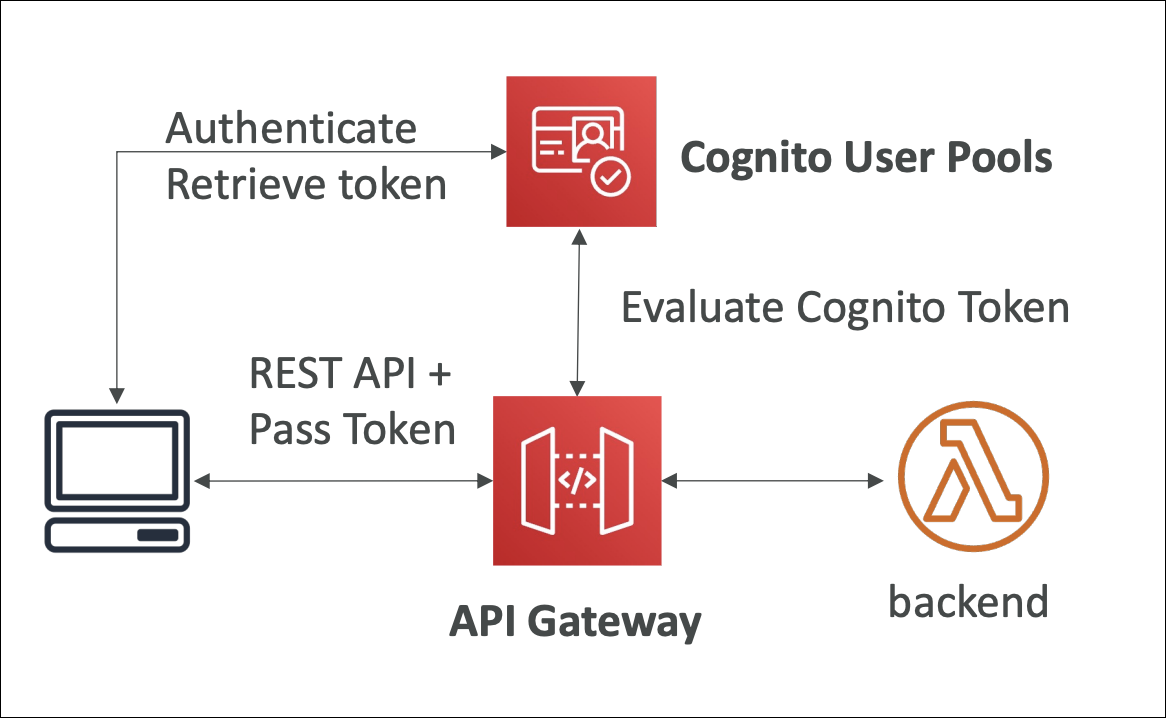
Cognito provides managed user authentication. Users sign up → Cognito stores user data → Users sign in → Cognito validates credentials → Returns JWT tokens → Your app uses tokens to authorize requests.
Cognito User Pools
User directory and authentication service. Users sign up/sign in, Cognito manages user data, passwords, MFA, email verification. Returns JWT tokens for authorization.
Sign-up/Sign-in supports email/password, phone number, social providers (Google, Facebook, Amazon).
MFA (Multi-factor authentication) available via SMS or TOTP.
Password policies can enforce password requirements.
User attributes store custom user data (name, email, phone, custom attributes).
Returns JWT tokens - ID token, access token, refresh token.
API Gateway integration - Use Cognito User Pool as authorizer for API Gateway.
Lambda triggers can fire during sign-up, sign-in, password reset events.
Cognito Identity Pools
Provides AWS credentials for unauthenticated and authenticated users. Users get temporary AWS credentials to access AWS services (S3, DynamoDB, etc.).
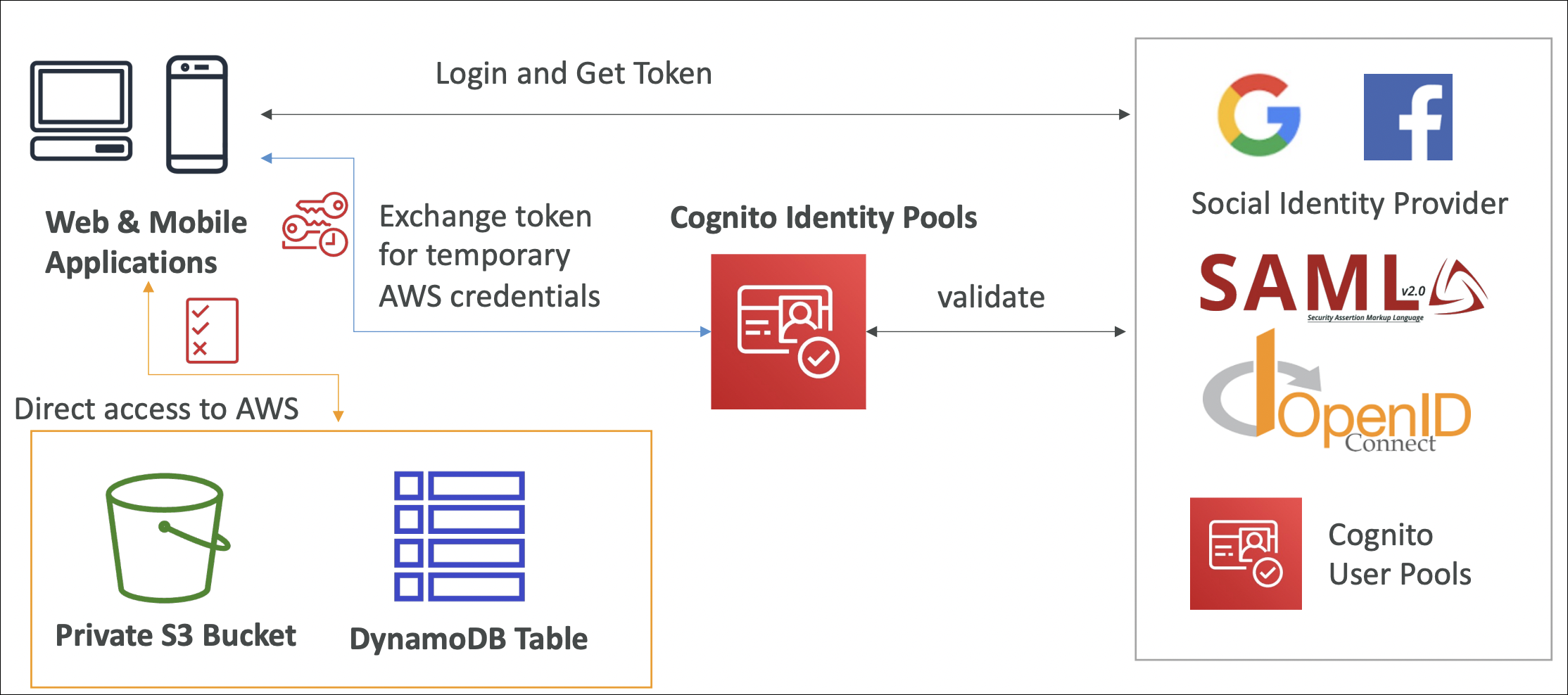
Users get temporary AWS credentials (access key, secret key, session token).
Can work with User Pools (authenticated users) or standalone (unauthenticated users).
Configure IAM roles for authenticated and unauthenticated users.
Useful for allowing users to directly access AWS services from your app.