AWS Notes: ECS + Fargate + ECR + EKS + App Runner
Amazon ECS (Elastic Container Service)
ECS is AWS’s container orchestration service. Think of it like a manager for your Docker containers - it runs containers, scales them, manages them, keeps them healthy.
You have Docker containers. You want to run them on AWS. Without ECS: spin up EC2 instances → install Docker → run containers manually → manage scaling, health checks, load balancing → lots of manual work. With ECS: define tasks → ECS runs containers → handles scaling, health checks, load balancing → done.
Launch Types
| Launch Type | Details |
|---|---|
| EC2 Launch Type | • You manage EC2 instances • You choose instance types, sizes • Containers run on your EC2 instances • More control, more management • Use when: need specific instance types, cost optimization |
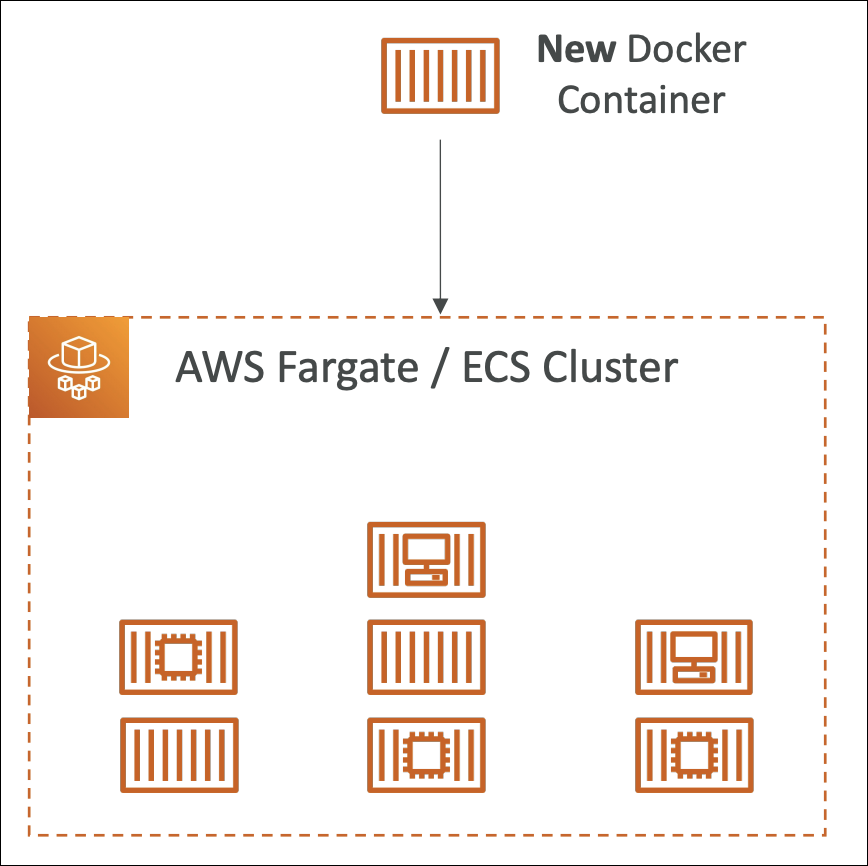
| Fargate Launch Type | • Fully managed, no EC2 instances to manage • AWS manages infrastructure • Just define tasks, Fargate runs them • Less control, less management • Use when: want simplicity, no server management |
ECS Express Mode
ECS Express Mode simplifies deployment by automatically setting up infrastructure (load balancer, networking, auto-scaling). Just provide container image → Express Mode creates service with production-ready defaults. You can still customize everything. Multiple Express Mode services can share same ALB to reduce costs. Use when: want quick deployment without manual infrastructure setup.
Cluster Infrastructure Options
When creating ECS cluster, you choose infrastructure type:
| Option | Details | Use When |
|---|---|---|
| Fargate Only | • Serverless, no EC2 instances • AWS manages everything • Pay per vCPU/memory used • No server management | • Most common workloads • Want simplicity • Don’t need specific instance types |
| Fargate and Managed Instances | • AWS manages EC2 instances (patching, scaling) • You choose instance types • More control than Fargate • AWS handles patching and scaling | • Need specific instance types • Want AWS to manage patching/scaling • More advanced workloads |

IAM Roles for ECS
ECS needs IAM roles to access AWS services. See IAM roles for Amazon ECS for detailed information.
| Role Type | Details |
|---|---|
| Infrastructure Role | • Used by ECS service itself to manage infrastructure • Allows ECS to create/update/delete resources (load balancers, target groups, etc.) |
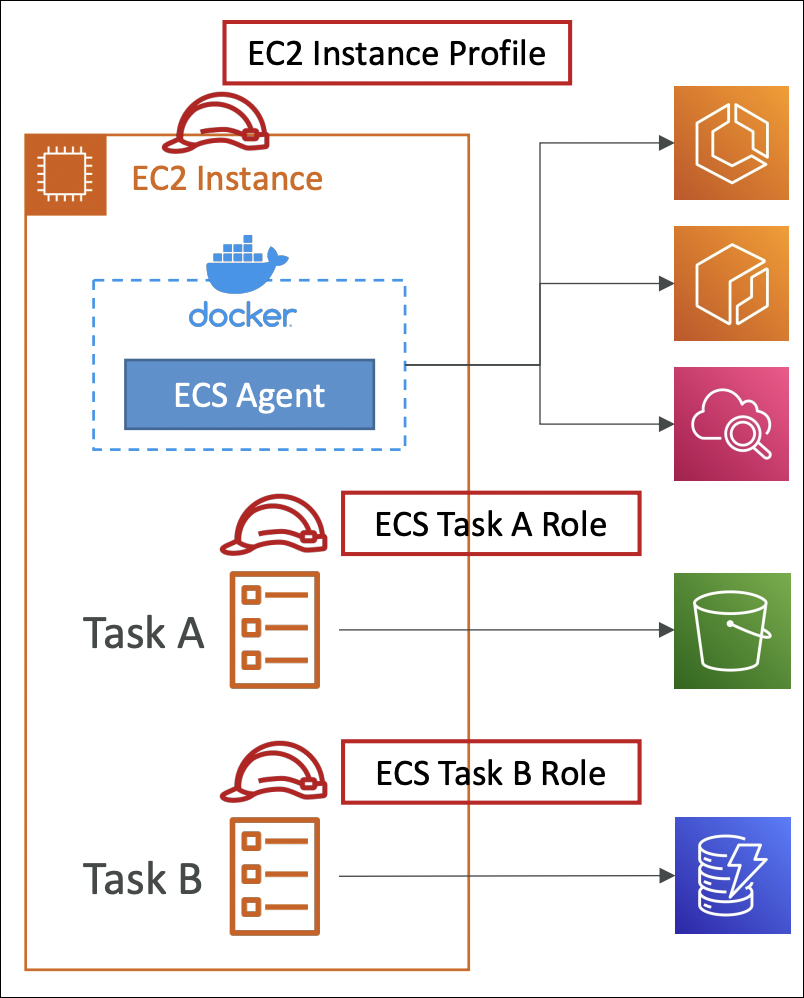
| Instance Profile Role | • Used by EC2 instances (EC2 launch type only) • Allows ECS agent on EC2 to register with ECS cluster • Required for EC2 launch type • Not needed for Fargate |
| Task Execution Role | • Used by ECS agent (not your application) • Pulls Docker images from ECR • Writes logs to CloudWatch Logs • Retrieves secrets from Secrets Manager/Parameter Store • Required for Fargate, optional for EC2 |
| Task Role | • Used by your application code running in container • Allows container to access AWS services (S3, DynamoDB, SQS, etc.) • Your app uses this role to call AWS APIs • Optional, but needed if your app accesses AWS services |
Example: Your app needs to read from S3. Task execution role pulls image from ECR. Task role allows your app to read from S3. Two different roles for two different purposes.
Load Balancer Integration
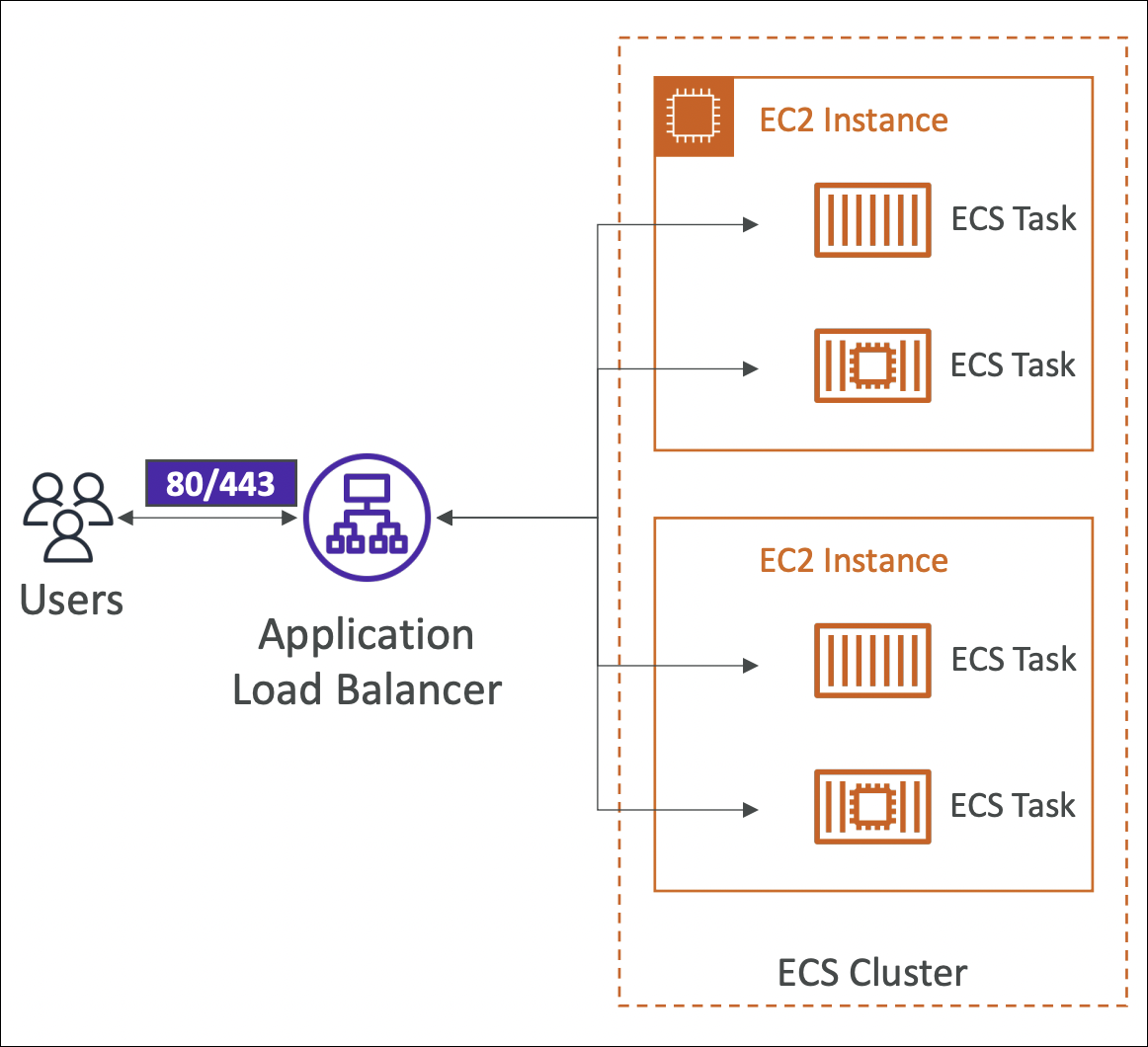
ECS services can integrate with load balancers to distribute traffic across tasks.
How it works:
- Create ALB or NLB (ALB recommended for HTTP/HTTPS)
- Create target group
- When creating ECS service, attach load balancer
- ECS automatically registers tasks to target group
- When task starts → registered to target group
- When task stops → deregistered from target group
Data Volumes
ECS tasks can use EFS for persistent storage that survives task restarts and is shared across multiple tasks.
- Create EFS file system in same VPC as ECS tasks
- In task definition, add volume configuration → select EFS file system
- Mount volume to container path (e.g.,
/data) - Multiple tasks can mount same EFS file system simultaneously
- Works with both EC2 and Fargate launch types
- Data persists when tasks restart or scale

Hands-On: Create ECS Service with EC2 Launch Type
Let’s create an ECS service using EC2 launch type with nginx demo hello Docker image.
Step 1: Create Cluster
- Go to ECS → Clusters → Create Cluster
- Cluster name:
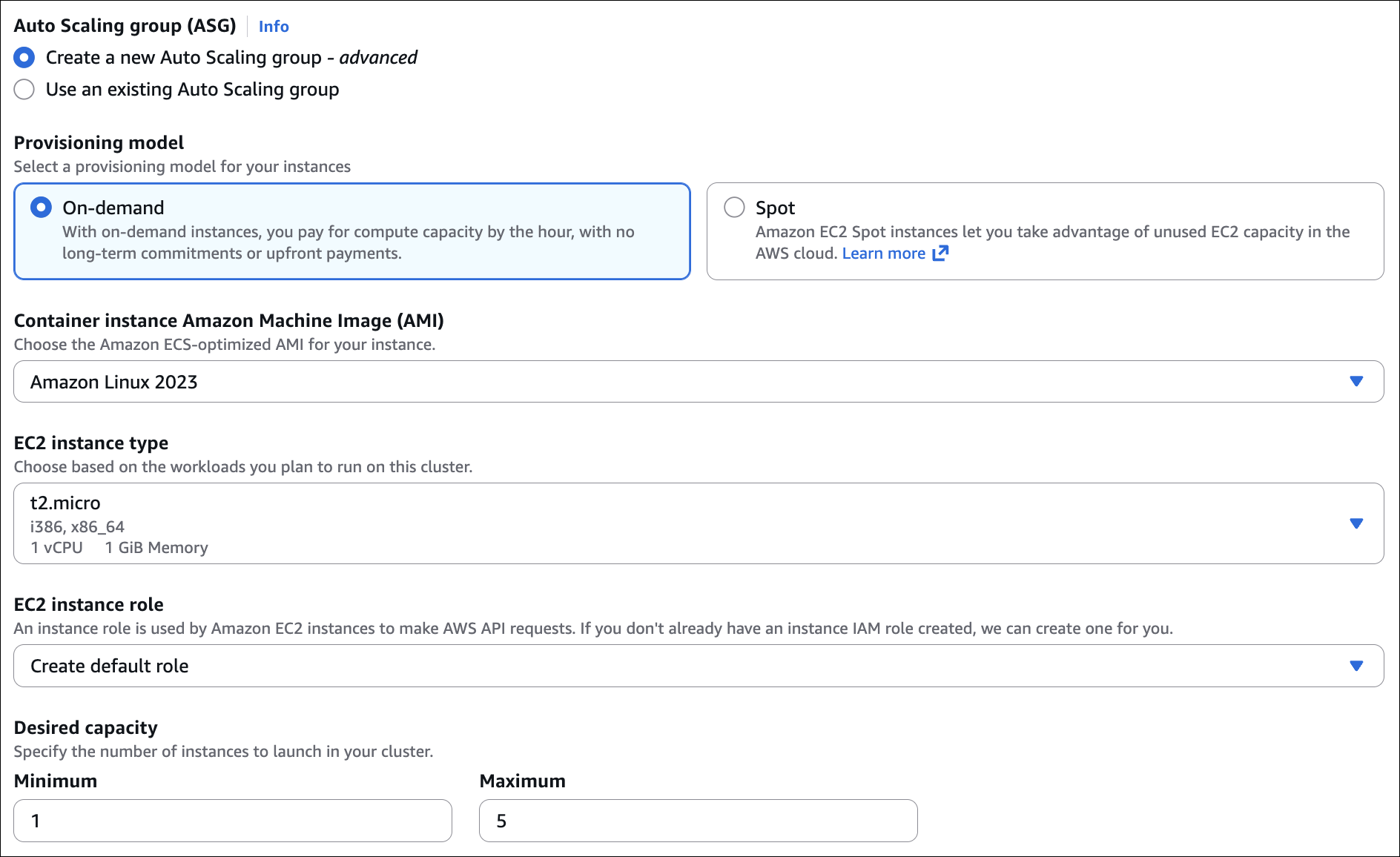
my-ecs-cluster - Infrastructure: Select Fargate and Self-managed instances
- EC2 instance type:
t2.micro - Desired capacity: min 1 max 5.
- Click Create
Step 2: Create Task Definition
- Go to ECS → Task Definitions → Create new Task Definition
- Task definition family:
nginx-demo - Launch type: EC2
- Task execution role: Create new role (for pulling images, writing logs)
- Task size: 0.25 vCPU, 512 MB memory
- Container: Add container
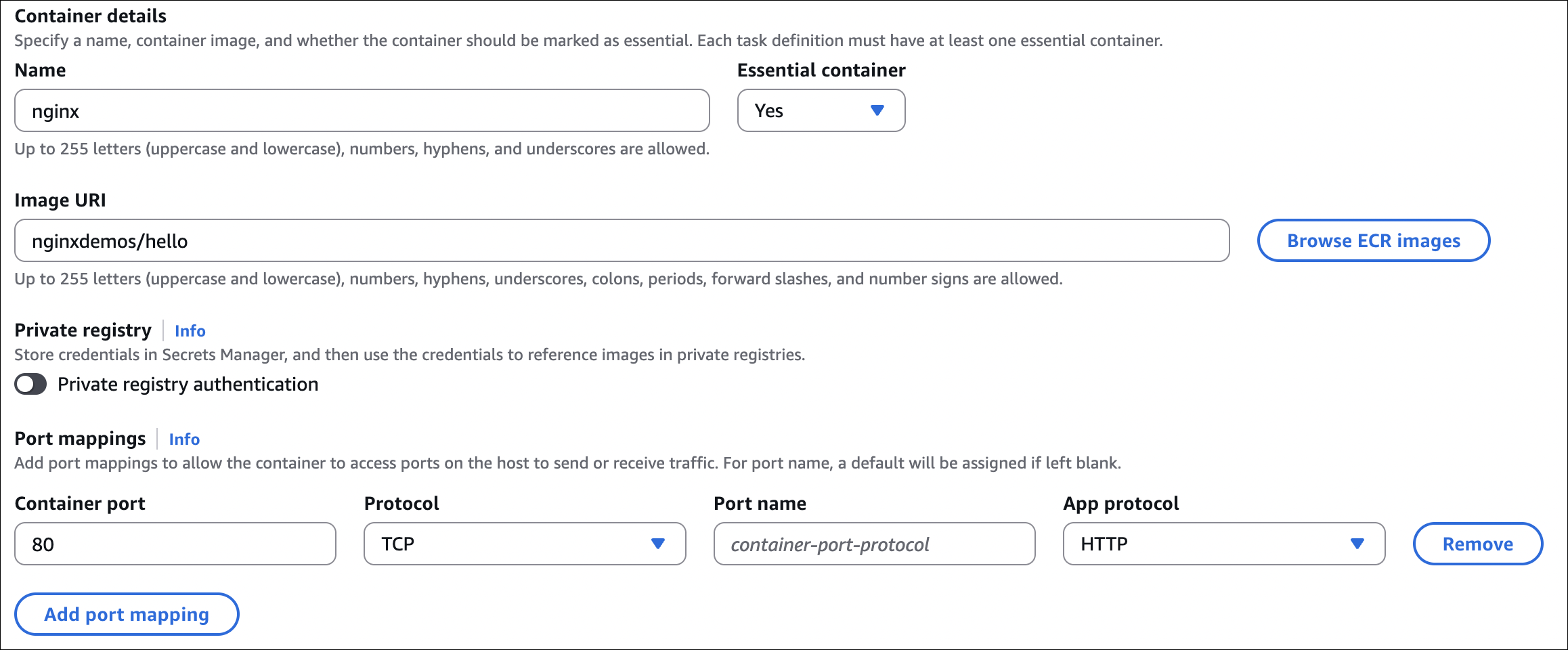
- Container name:
nginx - Image:
nginxdemos/hello(public Docker Hub image) - Port mappings: Container port
80, ProtocolTCP - Click Add
- Container name:
- Click Create
Step 3: Create Service
- Go to your cluster → Services tab → Create
- Launch type: Fargate
- Task definition: Select
nginx-demo - Service name:
nginx-service - Desired number of tasks: 2
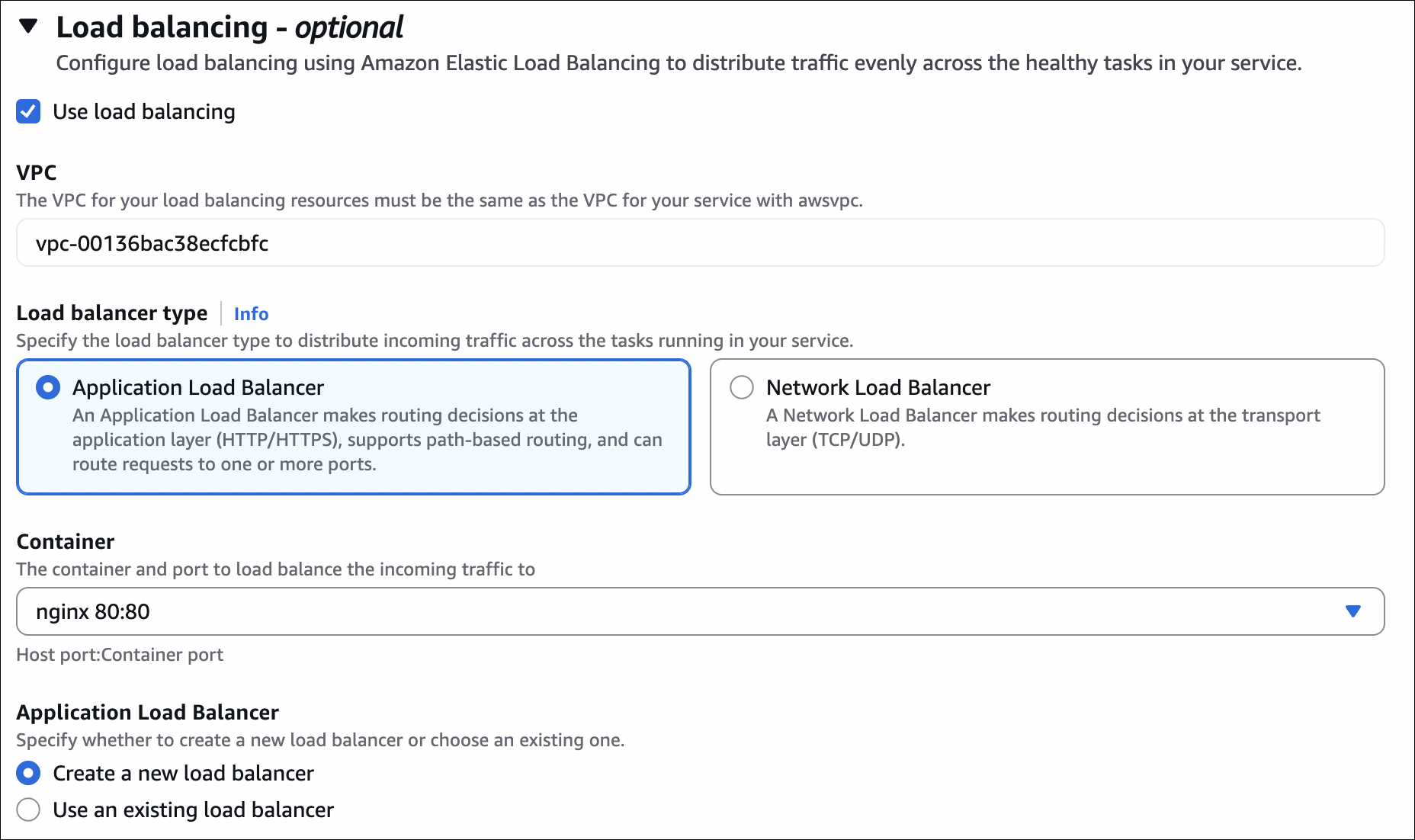
- Load balancer: Application Load Balancer (optional, but recommended)
- Create new ALB or select existing
- Create new target group
- Container to load balance: Select
nginx:80:80
- Click Create
Step 4: Verify
- Go to cluster → Tasks tab → See running tasks
- Go to cluster → Services tab → See service running
- If ALB attached: Get ALB DNS name → Access in browser → See nginx hello page
- Scale: Update service → Change desired count → ECS launches more tasks
Amazon ECR (Elastic Container Registry)
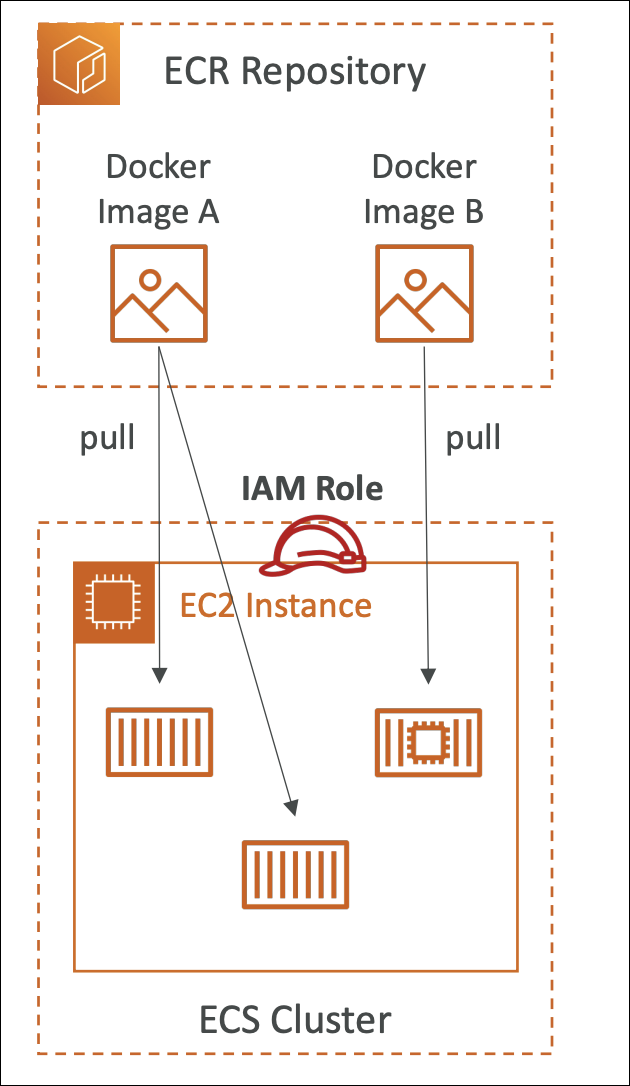
ECR is AWS’s Docker container registry. Store Docker images, use them in ECS/EKS.
Images are private by default, only accessible with AWS credentials. Use aws ecr get-login-password to get Docker login token for authentication. Repository URL format: {account-id}.dkr.ecr.{region}.amazonaws.com/{repo-name}.
Lifecycle policies automatically delete old images to save costs (e.g., keep last 10 images). Image scanning scans images for vulnerabilities (optional). Cross-region replication replicates images to multiple regions. Works seamlessly with ECS, EKS, Lambda. Pay for storage (GB/month) and data transfer.
Amazon EKS (Elastic Kubernetes Service)
EKS is AWS’s managed Kubernetes service. AWS manages Kubernetes control plane, you manage worker nodes.
Node Types
| Node Type | Details |
|---|---|
| Managed Node Groups | • AWS manages EC2 instances, auto-scaling, updates • You specify instance type, AMI, scaling config • AWS handles node lifecycle, patching • Easier to manage |
| Self-Managed Node Groups | • You manage EC2 instances yourself • You handle scaling, patching, updates • More control, more management |
| Fargate | • Serverless, no EC2 instances to manage • AWS manages infrastructure • Pay per pod (vCPU/memory) • Limited to certain pod configurations |
Data Volumes
EKS uses Kubernetes PersistentVolumes for persistent storage.
EBS Volumes:
- Block storage, attached to EC2 nodes
- One volume per pod (not shared)
- Works with EC2 nodes, not Fargate
- Use when: single pod needs persistent storage
EFS Volumes:
- Shared file system, multiple pods can access simultaneously
- Works with EC2 nodes and Fargate
- Use EFS CSI driver to mount EFS volumes
- Use when: shared storage needed, multiple pods accessing same data
Hands-On: Create EKS Cluster
Let’s create an EKS cluster with managed node groups.
Step 1: Create EKS Cluster
- Go to EKS → Clusters → Create cluster
- Cluster configuration:
- Name:
my-eks-cluster - Kubernetes version: Select latest (e.g., 1.34)
- Cluster service role: Create new role (for EKS service)
- Name:
- Networking:
- VPC: Select your VPC
- Subnets: Select at least 2 subnets in different AZs
- Security groups: Default or create new
- Endpoint access: Public and private (or public only for testing)
- Click Create
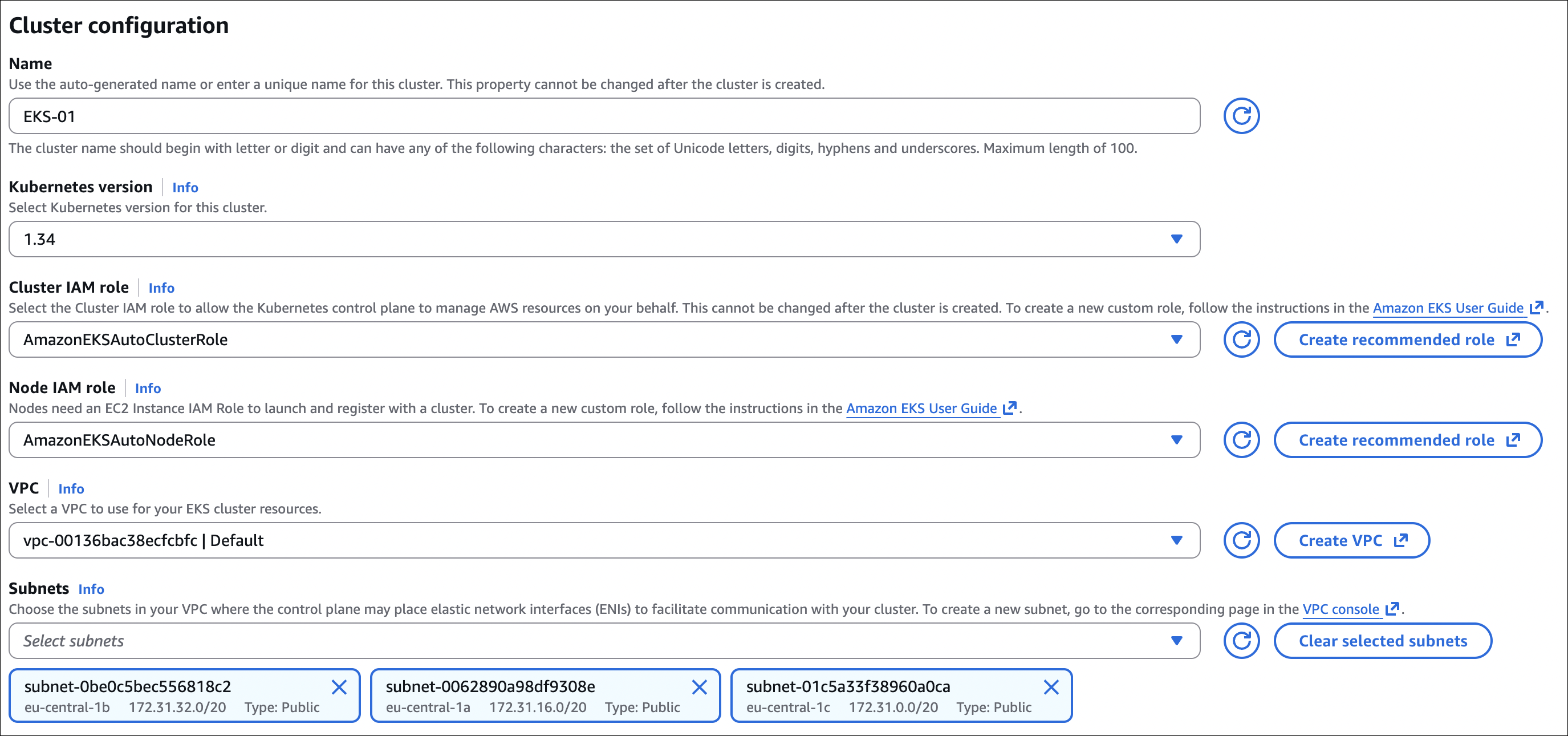
After cluster creation, we’ve only created the control plane. Now we need to create worker nodes to run our applications.
Step 2: Create Node Group
After cluster is created, go to Compute tab → Add node group
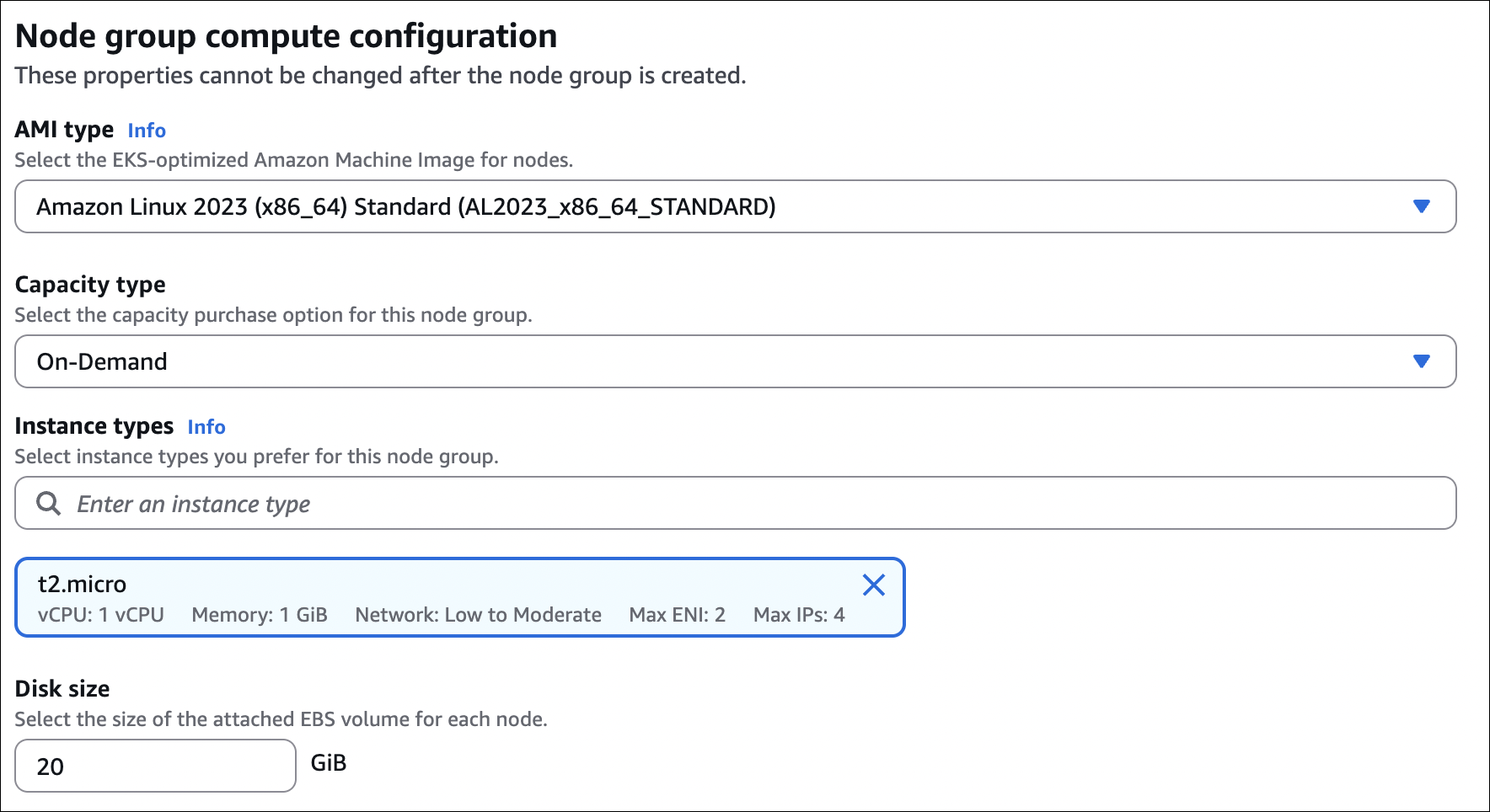
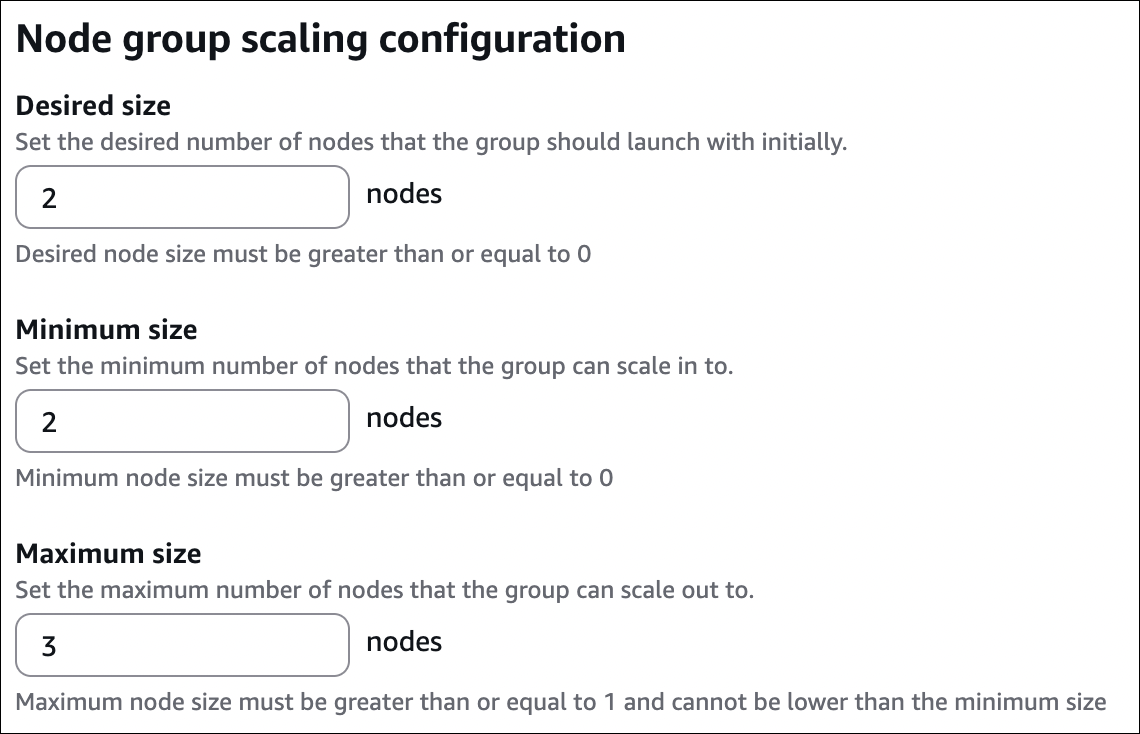
- Node group configuration:
- Name:
my-node-group - Node IAM role: Create new role (for EC2 instances to join cluster)
- Instance types:
t3.medium(or t3.small) - Desired size: 2
- Min size: 1
- Max size: 4
- Name:
- Click Create
AWS App Runner
App Runner builds and runs containerized web applications automatically. Provide source code or container image → App Runner handles building, deploying, and running. No infrastructure to manage.
You have a web application. You want to deploy it quickly. Without App Runner: set up ECS/EKS, configure build pipeline, manage scaling, handle infrastructure → lots of work. With App Runner: connect GitHub repo or provide container image → App Runner builds, deploys, scales automatically → done in minutes.
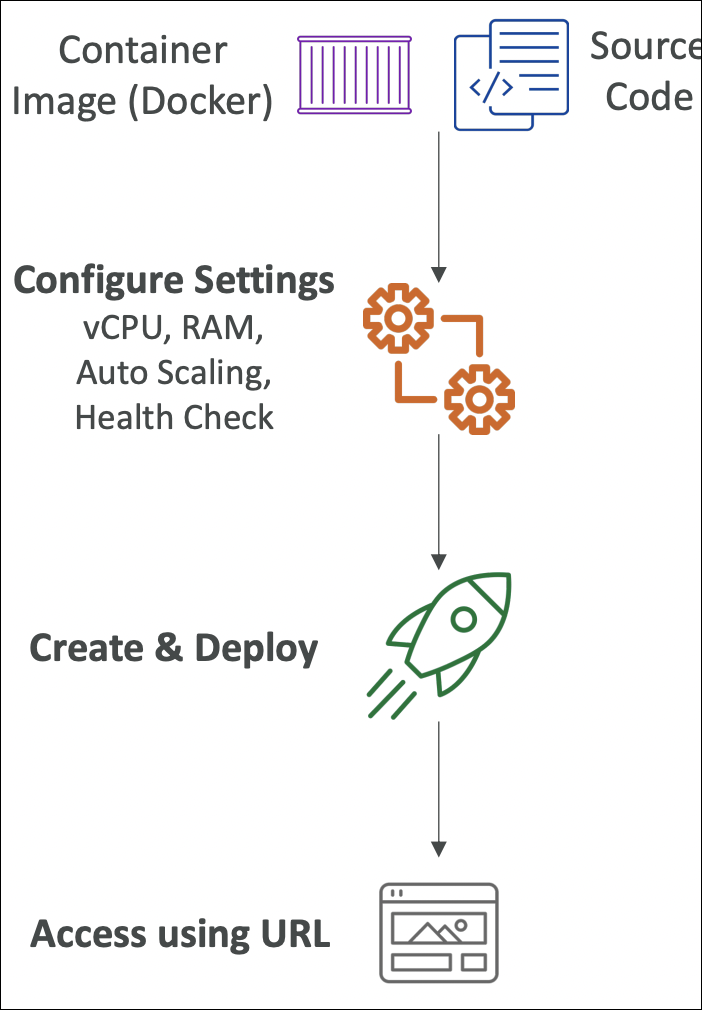
How It Works
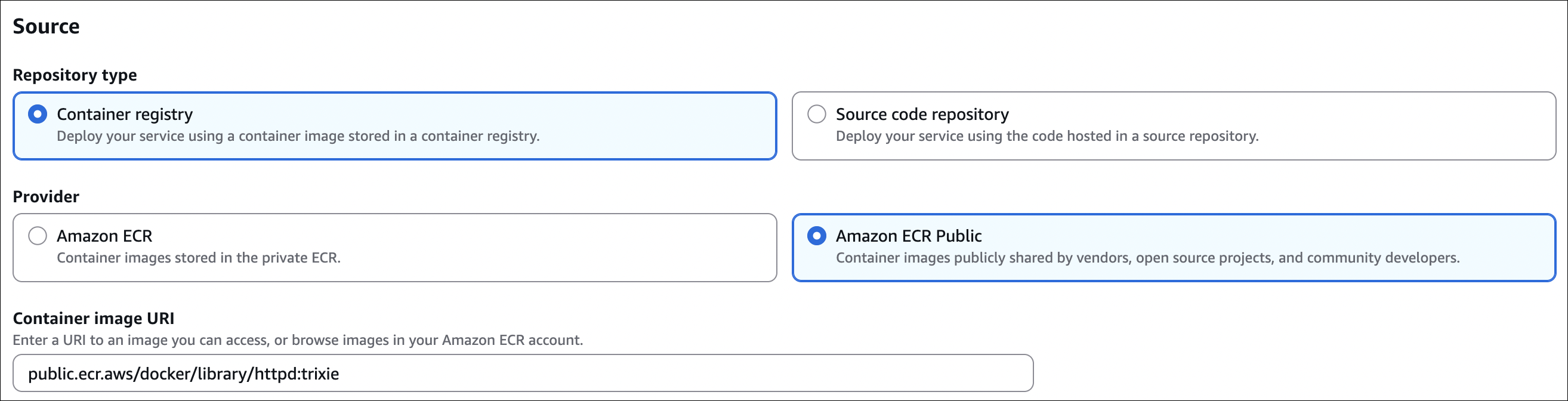
Connect your source code repository (GitHub, GitLab, Bitbucket) or container image (ECR). App Runner automatically builds your application (if source code), deploys to production, runs it, and handles scaling based on traffic. Push changes to repo → App Runner automatically rebuilds and redeploys.

- Fully managed: No servers, no clusters, no infrastructure to manage
- Automatic scaling: Scales based on traffic automatically
- Build from source: Connect GitHub/GitLab → App Runner builds Docker image automatically
- Container image: Use existing container image from ECR
- Custom domain: Add custom domain, SSL certificate automatically managed
- VPC integration: Connect to VPC for database access, private resources
- Cost: Pay per vCPU hour and GB memory hour used

AWS App2Container
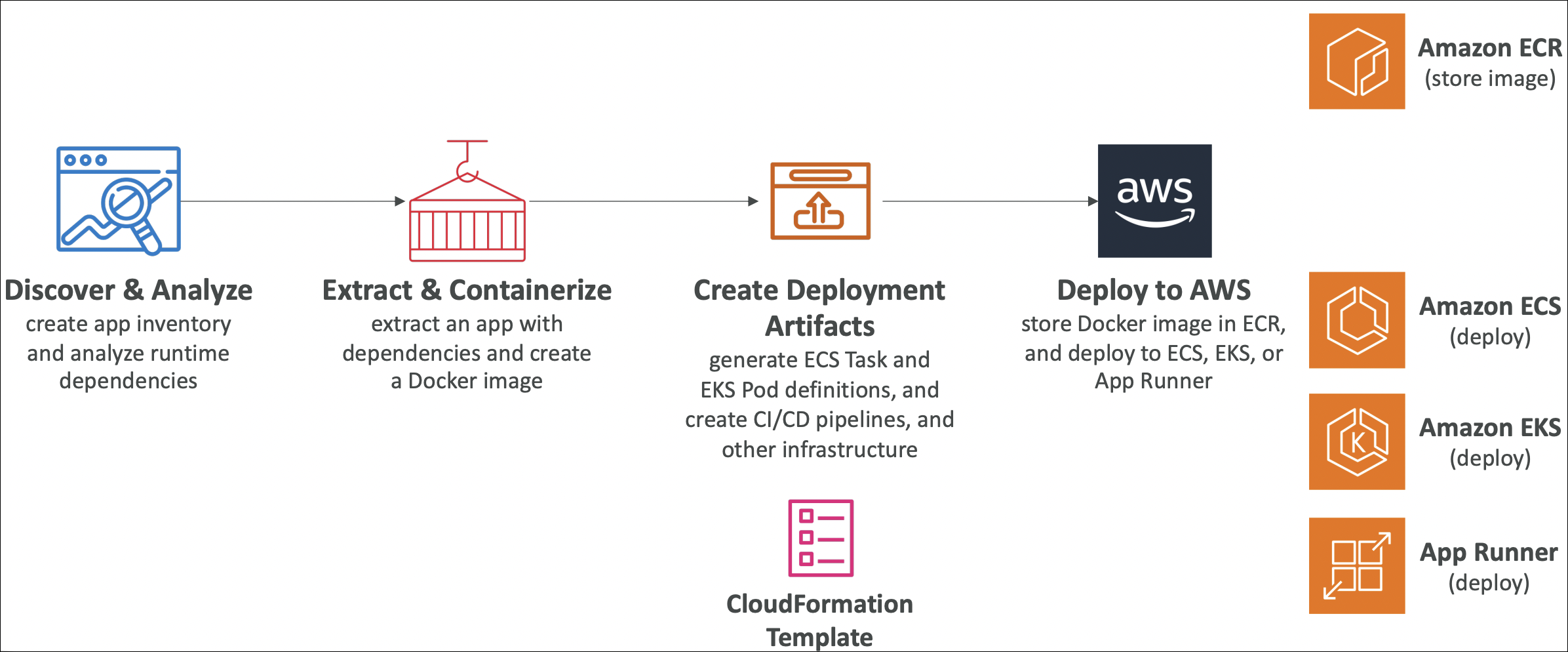
App2Container is a migration tool that converts existing applications (Java, .NET, Node.js, Python) into containers and deploys them to ECS or EKS.
What it does: Analyzes your application running on EC2 or on-premises → creates Dockerfile → builds container image → deploys to ECS/EKS. Helps migrate legacy applications to containers without rewriting code.
Use when: Migrating existing applications to containers, modernizing legacy apps, moving to ECS/EKS without rewriting code.